How to Remove Background Noise from a Zoom Recording in 2026
Zoom's noise settings can't change a recording you already saved. Find the MP4 or M4A file, clean it in your browser with a free 30-second preview, and set Zoom up for the next meeting.
Zoom's background noise settings work on your microphone during the meeting. Once the recording is saved, changing them does nothing to the file. The noise in that MP4 or M4A has to be cleaned from the file itself.
The quickest way is to upload the recording to the EraseNoise video noise remover, or the audio noise remover for an M4A. You hear a free 30-second preview before you process the full meeting.
Key Takeaways
- Zoom saves computer recordings in Documents/Zoom by default. Cloud recordings are in the Recording tab of the Zoom web portal.
- Video recordings are MP4. Audio-only recordings are M4A. EraseNoise accepts both.
- Zoom's Noise removal levels and Personalized audio isolation only affect the live mic, not a saved file.
- Before the next meeting, set Background noise suppression to Medium or High.
Quick answer
Already recorded: download or locate the Zoom file, upload it to EraseNoise, and compare 30 seconds with the original. Process the full file only if the voices are clearer. Next meeting: in Zoom, go to Settings, Audio, Microphone modes, choose Noise removal, and raise the suppression level.
Step 1: Find the Zoom recording file
Zoom records to your computer or to the cloud, and the file is in a different place for each.
Computer recordings. Zoom says they're stored on your computer's hard disk. The default folders are C:\Users\[Username]\Documents\Zoom on Windows and /Users/[Username]/Documents/Zoom on Mac. In the desktop app, you can also open the Home tab, click Open recordings, then go to My files, Meeting recordings, and the Computer recordings tab. (Managing computer recordings, retrieved 2026-10-21.)
Cloud recordings. These are available on paid Pro, Business, Education, and Enterprise plans, and they're in the Recording tab of your Zoom web portal. (Getting started with computer and cloud recording, retrieved 2026-10-21.) Download the file you need from there.
Zoom names the files by type: an audio and video file is video[random number].mp4 by default, and an audio-only file is audio[random number].m4a. (Understanding recording file formats, retrieved 2026-10-21.)
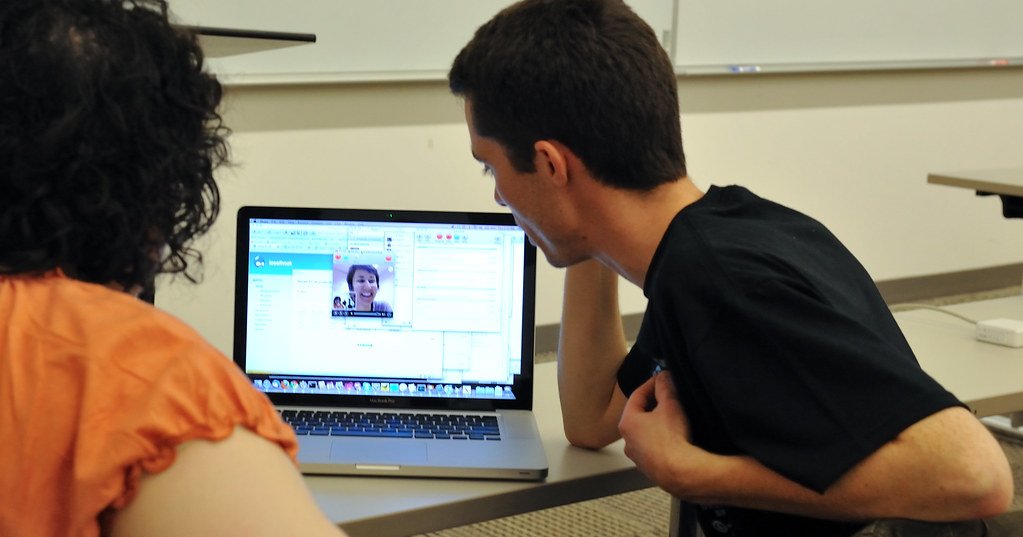
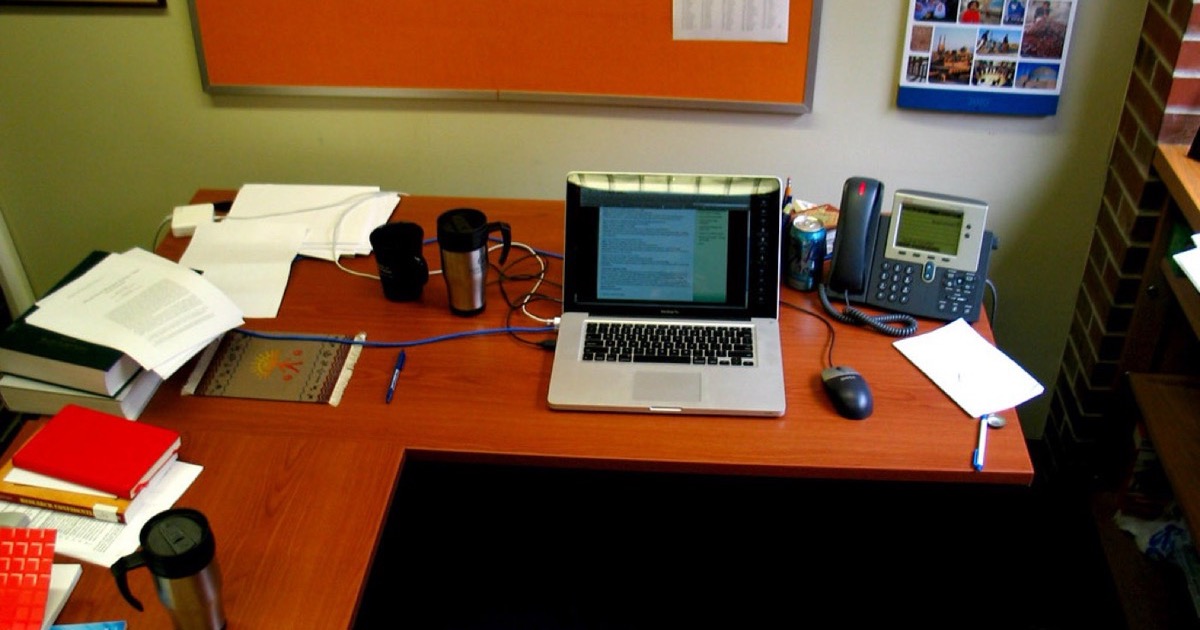
Photo: muir.ceardach, CC BY 2.0.
Step 2: Clean the recording with EraseNoise
- Upload the MP4 to the video noise remover, or the M4A to the audio noise remover.
- Listen to the free 30-second preview. The preview is cut from the start of the file, so a recording that begins with silence may need a quick trim first.
- If the voices are clearer and still sound natural, sign in and process the full file. Full files use paid minutes.
- Download the result. Video comes back as MP4 with the picture unchanged, and audio comes back as WAV.
You can try the preview without an account, three times a day. Uploads and results are deleted after 24 hours.
Zoom settings vs EraseNoise
| Job | Better first workflow |
|---|---|
| A recording you already saved or downloaded | EraseNoise: upload, preview 30 seconds, download |
| The next meeting, in a home office with a fan | Zoom Noise removal, Medium |
| The next meeting, in a cafe or open office | Zoom Noise removal, High, or Personalized audio isolation |
| Echo from a big meeting room in the recording | EraseNoise echo removal |
| Long silences at the start of a recording | Remove silence from audio |
| Two people talking over each other | Neither. Noise removal doesn't separate voices |
Common mistakes with Zoom recordings
- Changing Zoom's settings to fix an old file. Microphone modes only affect the meeting while it's live.
- Leaving Original sound for musicians on. Zoom notes that it disables noise suppression. If a recording suddenly has more noise than usual, check this setting for the next call.
- Uploading the whole file before checking a part. The preview is cut from the start, so trim a long silent intro first.
- Cleaning the whole file blind. Listen to a short preview first. If the noise is a bark or a door over a key sentence, cleanup won't bring that word back.
Set Zoom up for the next recording
Zoom's professional audio article gives the desktop path: click your profile picture, then Settings, then the Audio tab. Under Microphone modes, choose Noise removal and pick a level from Background noise suppression. (Setting up professional audio for Zoom Meetings, retrieved 2026-10-21.)
- Auto is the default, with moderate reduction when needed.
- Low blocks low levels of persistent noise.
- Medium is Zoom's level for fans, pen tapping, and similar noise.
- High is the most aggressive and can remove background speech from others.
For a crowded room, Personalized audio isolation is the stronger option. Zoom says it aims to better tell your voice apart and suppress background noise, even in open environments. Without a recorded voiceprint, it mainly helps with a headset mic. (Configuring and using personalized audio isolation, retrieved 2026-10-21.)
Frequently asked questions
Can Zoom remove background noise after the meeting?
No. Zoom's noise removal works on the microphone during the meeting. A saved MP4 or M4A needs a file tool. Upload it to EraseNoise and check the free 30-second preview first.
Where are Zoom recordings saved?
Computer recordings go to the Zoom folder in Documents by default. Cloud recordings are in the Recording tab of the Zoom web portal, on paid plans.
Can I clean an audio-only Zoom recording?
Yes. Zoom saves audio-only recordings as M4A, and EraseNoise accepts M4A on the audio noise remover. The cleaned file downloads as WAV.
Do I need to re-record a noisy Zoom meeting?
Usually not if the noise is steady, like a fan or hum. Listen to the preview. If a key sentence was covered by a loud sound, that part may need to be repeated.
The practical takeaway
Zoom's noise settings protect the next meeting. For the recording you already have, upload it to the EraseNoise video noise remover and judge 30 seconds before you process the rest. For Teams and Google Meet recordings, see how to clean a noisy meeting recording.