How to Remove Background Noise in DaVinci Resolve in 2026 (Free and Studio)
Use the Fairlight Noise Reduction plug-in in the free version or Voice Isolation in DaVinci Resolve Studio, or clean the exported clip in your browser without buying Studio.
DaVinci Resolve has two ways to remove background noise. The free version includes the Fairlight Noise Reduction plug-in, which learns a noise profile and subtracts it. Voice Isolation, the AI tool most people are looking for, is part of the paid DaVinci Resolve Studio.
If you only need one clip cleaned, you don't have to buy Studio or learn Fairlight. Export the clip and try the EraseNoise video noise remover, which plays a free 30-second preview before you process anything.
Key Takeaways
- Free version: drag Fairlight FX Noise Reduction onto the clip, select a stretch of noise, and let it learn.
- Studio version: Voice Isolation is a DaVinci Neural Engine feature that Blackmagic lists for Studio only.
- A learned profile works on steady noise. It struggles when the noise keeps changing.
- Without Studio, a browser tool is the quickest way to try AI cleanup on an exported clip.
Quick answer
Use Fairlight Noise Reduction (free) when the noise is steady and you have a stretch of pure room tone to learn from. Use Voice Isolation if you already own Studio. If you don't, and the clip is finished, export it and upload it to EraseNoise: hear 30 seconds free, and process the full file only if it sounds better.
Method 1: Fairlight Noise Reduction (free)
Blackmagic says the Fairlight noise reduction plug-in automatically detects noise in a selection, or you can teach it by selecting noise and clicking Learn. Drag it onto a clip, or onto a Fairlight mixer channel to process the whole track. (DaVinci Resolve Fairlight, retrieved 2026-10-21.)
- Open the Effects Library and find the Fairlight FX group.
- Drag Noise Reduction onto the clip.
- Find a second or two where only the noise plays, and use Learn on it.
- Play the dialogue and adjust the reduction until the noise drops but the voice keeps its edges.
The profile decides the result. If every second has someone talking, the plug-in learns voice as noise and starts removing it.
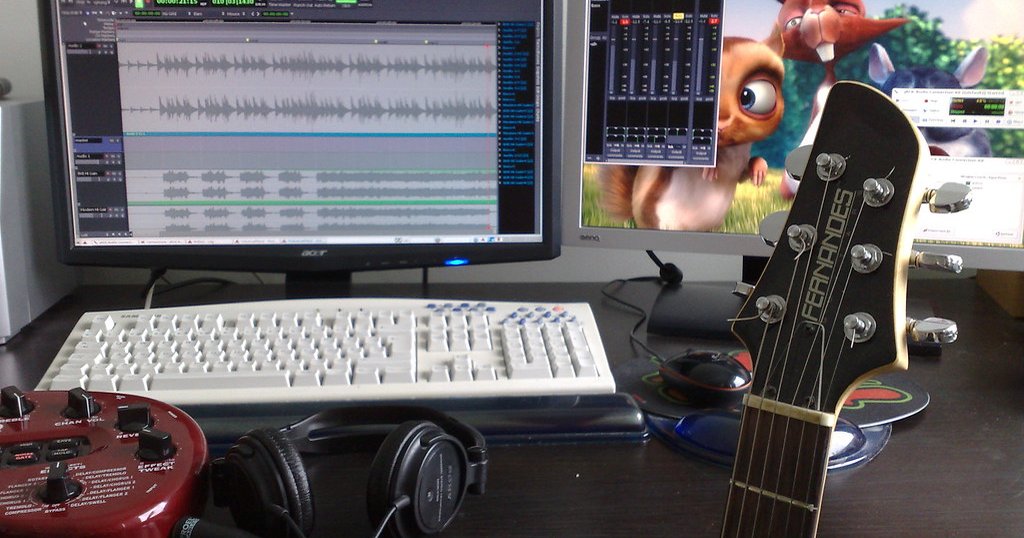
Photo: wstryder, CC BY 2.0.
Method 2: Voice Isolation (Studio)
Blackmagic lists DaVinci Neural Engine AI voice isolation among the features of DaVinci Resolve Studio. (DaVinci Resolve Studio, retrieved 2026-10-21.) Videomaker's coverage of the 18.1 release notes it's accessible from the Cut, Edit, and Fairlight pages. (Videomaker: DaVinci Resolve 18.1, retrieved 2026-10-21.)
- Select the clip on the Edit page and open the Inspector.
- In the Audio tab, turn on Voice Isolation.
- Lower the amount from full strength until the voice stays clear without sounding cut out of the room.
For a whole interview, apply it on the track in the Fairlight mixer so every clip gets the same treatment.
DaVinci Resolve vs EraseNoise
| Job | Better first workflow |
|---|---|
| Steady hiss or fan, with clean room tone available | Fairlight Noise Reduction (free) |
| Noise that changes, like traffic, with no Studio license | EraseNoise: upload the export, preview 30 seconds |
| You own Studio and the clip is in a larger edit | Voice Isolation on the clip or track |
| One finished video to clean, no time to learn Fairlight | EraseNoise |
| Power line hum | Fairlight De-Hummer, or EraseNoise on the export |
| Room echo | EraseNoise echo removal |
| A word covered by a sudden loud sound | Retake if possible |
Common mistakes in DaVinci Resolve
- Learning from a stretch with voice in it. The plug-in then removes parts of the voice. Find pure room tone, even half a second.
- Expecting Voice Isolation in the free version. Blackmagic lists it as a Studio feature.
- Leaving Voice Isolation at full strength. The voice can sound like it was recorded in a closet, which looks wrong on a wide outdoor shot.
- Skipping the level check. Noise removal usually lowers the clip's level. Use clip gain or normalize after cleanup.
When EraseNoise is faster
EraseNoise is faster when you don't own Studio, or when a learned profile can't keep up with noise that changes. There's no profile to capture.
- Render the clip from the Deliver page as MP4 or MOV, or export the audio as WAV.
- Upload it to the video noise remover, or the audio noise remover for an audio file.
- Listen to the free 30-second preview against the original.
- If the voice is clearer, sign in and process the full file with paid minutes.
- Download the MP4 or WAV and bring it back into Resolve if you're still editing. Files are deleted after 24 hours.
Frequently asked questions
Can you remove background noise in the free version of DaVinci Resolve?
Yes. The free version includes Fairlight Noise Reduction, which learns a noise profile. Voice Isolation is the part that needs Studio.
Is Voice Isolation free in DaVinci Resolve?
No. Blackmagic lists AI voice isolation as a DaVinci Resolve Studio feature, not part of the free version.
Is there an alternative to Voice Isolation without buying Studio?
Export the clip and upload it to EraseNoise. You hear a free 30-second preview first, and pay only if you process the full file.
Why does my voice sound robotic after noise reduction?
The reduction is too strong, or the learned profile included speech. Learn a stretch with only room noise and lower the amount.
The practical takeaway
Use Fairlight's free Noise Reduction for steady noise with clean room tone. If you need AI cleanup and don't own Studio, export the clip and try the EraseNoise video noise remover. The 30-second preview shows whether it fixes your clip before you pay for anything.
For other editors, see Premiere Pro, CapCut, and the general guide to cleaning a video's audio.
Sources
- Blackmagic Design, DaVinci Resolve Fairlight
- Blackmagic Design, DaVinci Resolve Studio
- Videomaker, Blackmagic Design releases DaVinci Resolve 18.1