How to Remove Ambient Noise from Audio Without a Thin Voice
Lower the steady room sound behind a voice without making it hollow. Measured strength levels, Audacity and Audition steps, and a free 30-second preview.
Ambient noise is the steady sound of the room behind a voice. You can lower most of it, but removing all of it often makes the voice sound thin, so the goal is a quieter room, not a silent one. In our measurements below, a full cleanup drops the pauses to silence or close to it, and that empty gap is what makes a voice sound like it's in a vacuum.
To hear where your own recording lands, upload it to the EraseNoise background noise remover and play the free 30-second preview. Then move the strength slider down and listen again. Most people stop somewhere short of 100%.
Key Takeaways
- Ambient noise is steady: a fridge, an air conditioner, distant traffic, the hiss of a quiet room. Steady noise is the easiest kind to lower.
- In our tests, cleaning at full strength took the quietest moments of three real recordings down to silence or close to it. At 80% strength, the room was about 14 dB quieter than the original. At 50%, about 6 dB.
- Audacity's own default reduction is 6 dB, not total removal. The tools are built to turn the room down, not off.
- If the voice sounds hollow, lower the strength or the reduction amount before you change anything else.
What you'll hear: ambient noise, background noise, and room tone
These three terms overlap, and the difference changes how much you should remove.
| Term | What it is | How much to remove |
|---|---|---|
| Ambient noise | The steady sound of the place: AC, fridge, computer fan, distant traffic, hiss | Most of it, not all |
| Background noise | Anything that isn't the voice, steady or sudden: ambient noise plus doors, dogs, other people | Depends on the sound. Sudden sounds need their own fix |
| Room tone | The ambient sound of a room with nobody talking, recorded on purpose | Keep it. Editors paste it into gaps so cuts don't go silent |
So when someone asks how to remove ambient noise from audio, the useful answer is: lower it until it stops pulling attention, and leave a little room tone behind. A door slam or a bark isn't ambient noise. Those need a cut or a different tool, such as the dog barking remover.

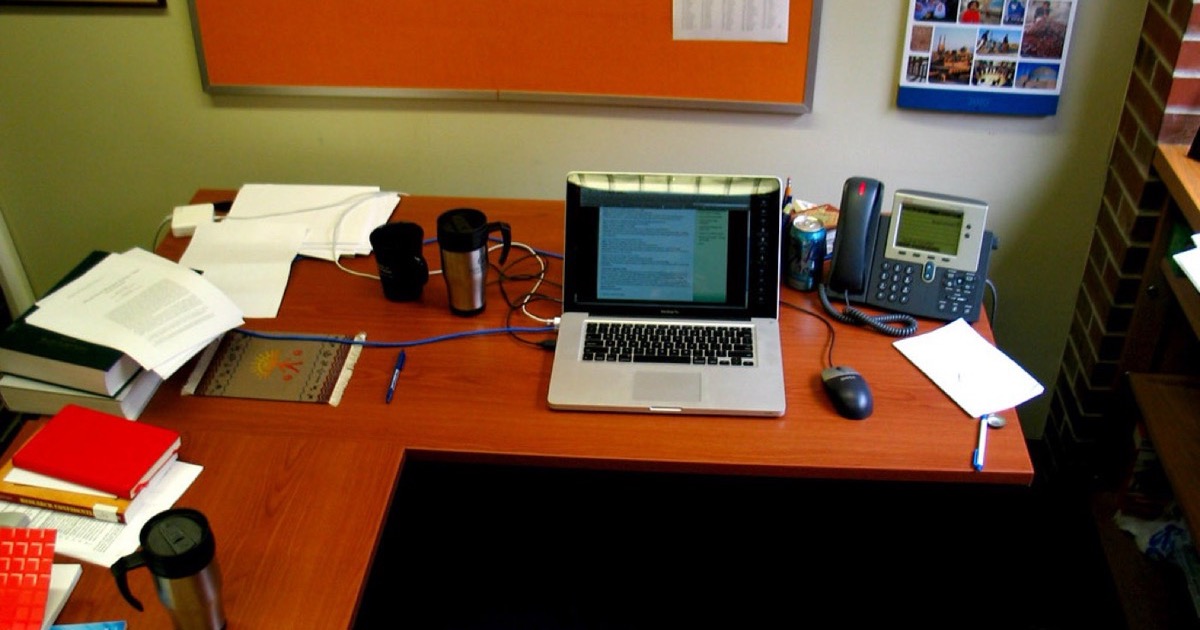
Photo: Kelly Sikkema, CC0, via Wikimedia Commons.
Why removing all of it sounds wrong
Removing all of the ambient noise sounds wrong because noise is only fully gone in the pauses. Under the words, some of the room is always mixed in with the voice. When the pauses drop to silence and the words still carry a trace of the room, the background seems to switch on every time the speaker talks. Listeners hear that as hollow, thin, or underwater, even if they can't say why.
We measured it. We took three real recordings from our sample library and mixed the original back in at the same ratios the EraseNoise strength slider uses. Then we measured the quietest moment of each version with ffmpeg's astats filter, which reports the noise floor: the level of the quietest short window in the file.
| Recording | Original | 50% strength | 80% strength | 100% strength |
|---|---|---|---|---|
| Air conditioner | −54 dB | −60 dB | −68 dB | Silence |
| Street | −38 dB | −44 dB | −51 dB | −88 dB |
| Kitchen | −58 dB | −65 dB | −73 dB | Silence |
The pattern holds across all three. At 50% the room is about 6 dB quieter, at 80% about 14 dB quieter, and at 100% the quietest moments go to silence or close to it. That last step is the one that changes the character of the recording. Six to fourteen decibels is already a big drop. You'll hear the room recede, while the voice keeps something real around it.
This lines up with how Audacity is set up. Its Noise Reduction defaults to 6 dB of reduction, and the manual tells you to use the lowest value that makes the noise acceptable (Audacity Manual: Noise Reduction, retrieved 2026-10-26).
Fixing a recording you already have
Ambient noise is the one kind of background noise where a classic noise profile works well, because the sound doesn't change. Use a free editor if you like tuning settings, or a speech model if you'd rather judge by ear.
In Audacity (free)
- Select a stretch where nobody talks and only the room is audible. Audacity needs at least 0.05 seconds at 44,100 Hz. A second or more is better.
- Open Effect > Noise Removal and Repair > Noise Reduction and click Get Noise Profile.
- Select the whole recording and open Noise Reduction again. Start at the defaults: 6 dB, Sensitivity 6.00, Frequency Smoothing 6 bands.
- Switch to Residue and preview. That's what will be removed. If you hear the voice in it, lower Sensitivity.
- Switch back to Reduce, apply, and listen to a full sentence.
Our Audacity noise removal guide covers each setting in more detail.
In Adobe Audition
Audition uses the same idea: capture a noise print from a noise-only stretch, then apply Noise Reduction (process) to the clip. Adobe notes that a print of one kind of noise won't do well on a different kind, so take it from the room you want to lower (Audition noise reduction and restoration effects, retrieved 2026-10-26). Steps are in our Adobe Audition guide.
With EraseNoise, using the strength slider
- Upload the file to the background noise remover. Audio can be MP3, WAV, M4A, AAC, OGG, Opus, or FLAC. For a video, use the video noise remover.
- Play the free 30-second preview. You don't need a noise-only stretch, and you don't need an account for 3 previews a day.
- Drag the strength slider down from 100% and listen at each stop. Strength mixes your original back in, so 80% keeps a fifth of the original room under the cleaned voice.
- Download when the voice sounds like the same person in a quieter room. Audio comes back as WAV. Full files use paid minutes, and uploads are deleted after 24 hours.
Hear the strength levels
The same air conditioner recording, original and at three strengths. Listen to the gaps between words, then to the voice itself.
Original
50% strength
80% strength
100% strength
The original is a real recording from the Microsoft DNS Challenge test set. At full strength, its DNSMOS background score went from 3.70 to 4.20 out of 5 and its NISQA naturalness from 3.48 to 4.55.
Which fix to use
| Job | Better first workflow |
|---|---|
| A long recording with a clean noise-only stretch | Audacity or Audition: take a profile from that stretch |
| No pause without talking | EraseNoise: no profile needed |
| You want to keep some room on purpose | EraseNoise with strength between 50% and 85%, or Audacity at a low dB value |
| Ringing walls, not hum | The echo remover |
Common mistakes
- Taking the profile from a quiet bit with breath in it. The tool learns the breath as noise and starts eating breaths and soft consonants.
- Maxing the strength or the reduction. Most of the improvement happens in the first 6–14 dB. The last step mostly adds the vacuum effect.
- Judging with laptop speakers. Room hum lives in the low end. Check on headphones before you export.
What you can't fix
- A sudden sound on top of a word. A door, a cough, or a bark isn't ambient noise. If it covers a word, cut it or re-record that line.
- Clipping. If the voice distorted while recording, noise removal can't rebuild it.
- A room louder than the voice. If you strain to hear the words in the original, there's not enough voice left to keep.
- Echo. A ringing room is reflection, not noise. It needs the echo or reverb tools.
Next time: free ways to prevent ambient noise
- Switch things off for the take. The AC, a desk fan, the fridge if it's close. Turn them back on after.
- Get the mic closer. Halving the distance to your mouth makes the voice louder against the room for free.
- Add soft things. A rug, curtains, a sofa, or a closet full of clothes soaks up both noise and echo.
- Record 10 seconds of room tone. You'll have a clean profile for Audacity and something to paste into gaps.
Next step
If the room rings rather than hums, use the echo remover. If the voice is clean but long pauses drag, the silence remover is free and runs in your browser. Recording in a cafe or a crowd instead of a quiet room? See how to remove crowd noise.
Ready to try your own file? Upload it to the EraseNoise background noise remover, hear 30 seconds free, and stop the slider where the voice still sounds like you.
Frequently asked questions
What is ambient noise in audio?
Ambient noise is the steady sound of the place a recording was made: air conditioning, a fridge, a computer fan, distant traffic, or the hiss of a quiet room. It stays roughly the same for the whole recording, which is why it's easier to remove than sudden sounds.
Should I remove all room tone?
No. A little room tone makes a voice sound natural and keeps cuts from going silent. In our measurements, 80% strength already made the room about 14 dB quieter, while 100% dropped the pauses to silence. That's usually the point where a voice starts to sound hollow.
How do I remove ambient noise for free?
Use Audacity: select a stretch with only the room in it, click Get Noise Profile, then apply Noise Reduction to the whole file starting at 6 dB. To test a speech model without tuning settings, EraseNoise gives you a free 30-second preview.
Why does my voice sound hollow after noise removal?
The cleanup went too far. The pauses dropped to silence while a trace of the room stayed under your words, so the background seems to switch on whenever you speak. Lower the strength or the reduction amount until the gaps keep a little room.
Sources
- Audacity Team, Audacity Manual: Noise Reduction, retrieved 2026-10-26.
- Adobe, Noise reduction and restoration effects, retrieved 2026-10-26.
- FFmpeg, astats filter documentation, used for the noise-floor measurements, retrieved 2026-10-26.
- Microsoft, DNS Challenge test set, source of the air conditioner, street, and kitchen recordings, retrieved 2026-10-26.