How to Clean the Audio in a Video and Put It Back in Sync
Clean a video's soundtrack without losing lip sync: extract it as WAV, clean it, and lay it back at frame one. Or upload the video and skip the round trip.
To clean a video's audio without losing sync, keep the cleaned track the same length as the clip and starting at 00:00, then place it at the first frame and mute the original. Almost every sync problem in this workflow comes from breaking one of those three rules: the track got trimmed, it starts a few milliseconds late, or it was dropped a frame off.
The shortest route skips the round trip. Upload the video to the EraseNoise video noise remover, hear a free 30-second preview, and download an MP4 with the same picture and a clean soundtrack. If you'd rather keep your editor in charge, this guide covers the round trip step by step.
Key Takeaways
- A cleaned soundtrack stays in sync when it starts at 00:00, runs the full length of the clip, and is placed at the clip's first frame.
- Use WAV for the round trip. In our test, the same 22.000-second soundtrack came back as 22.000 s in M4A, 22.016 s in WAV, and 22.056 s in MP3, because MP3 encoders add a short silence at the start and padding at the end.
- Keep video audio at 48 kHz from start to finish so the editor doesn't have to resample it.
- If you only need the cleaned sound in the same video, uploading the whole video avoids the export, the import, and the alignment.
Two ways to do it
| Extract, clean, re-import | Upload the video | |
|---|---|---|
| Steps | Extract the soundtrack, clean it, import it, line it up at frame one, mute the original | Upload the video, compare 30 seconds, download |
| What you get back | A WAV you place under the clip yourself | An MP4 with the same picture and a clean soundtrack, or a 48 kHz WAV of the same length |
| Where sync can slip | The format you export, a trim in the cleaning app, dropping it a frame off | Nowhere you touch: the soundtrack is replaced in place |
| Best when | The clip is already cut into a project, or you clean in a DAW you know | You have a finished or single clip and want it back as a file |
Pick the first way if the edit lives in Premiere, DaVinci Resolve, or CapCut and you only want to swap the dialogue track. Pick the second if you have one file and want one file back.
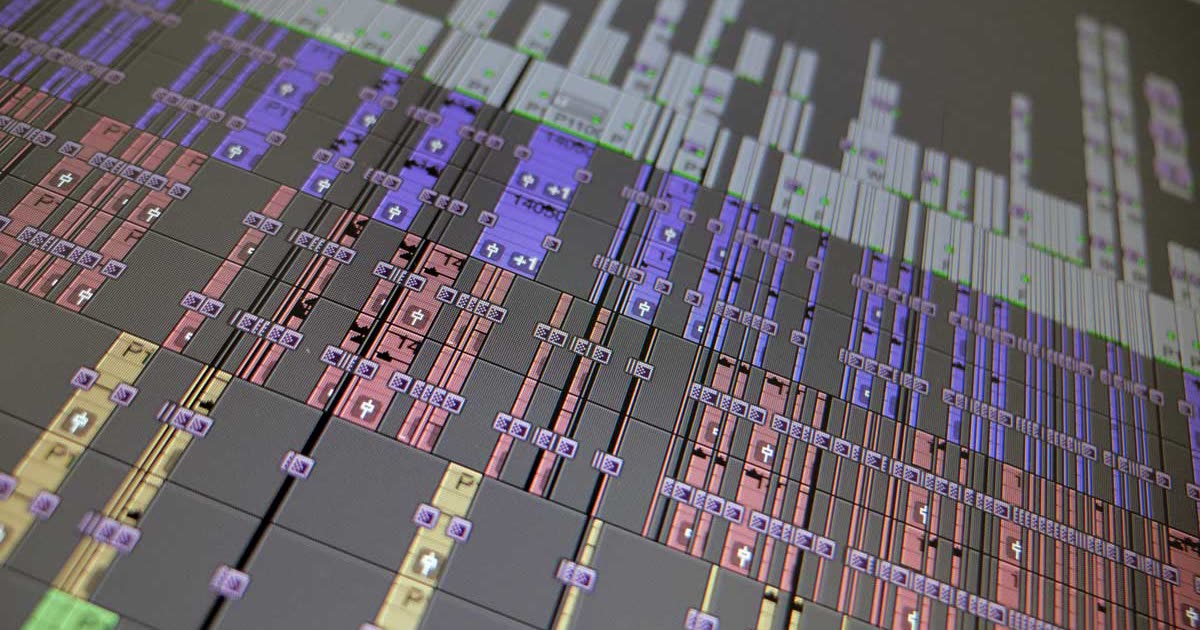
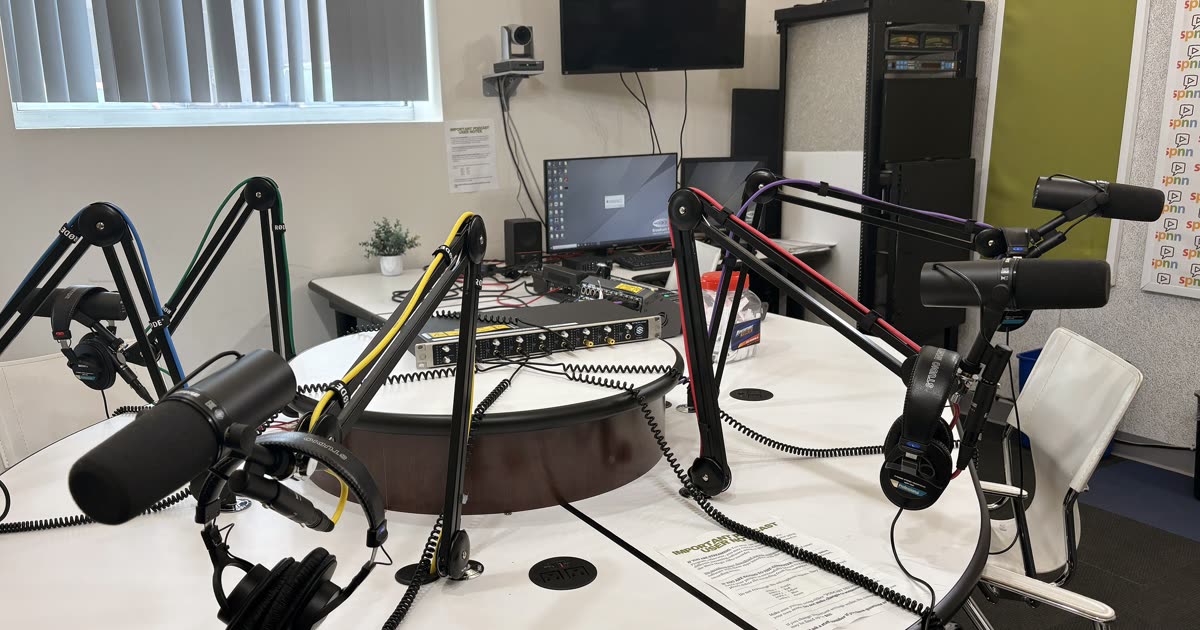
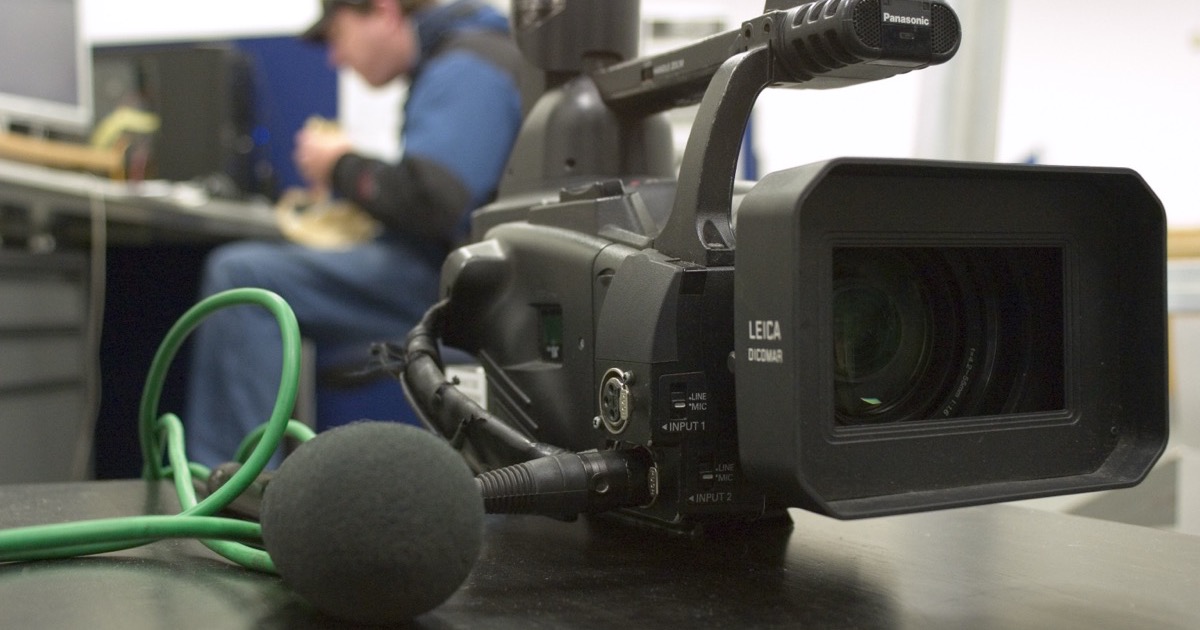
Photo: Cristobal Frigerio, CC0, via Wikimedia Commons.
Way 1: Extract, clean, and re-import
- Get the soundtrack out as WAV. Use the free Extract Audio from Video tool, which runs in your browser, or your editor's own export. In Premiere Pro that's Clip > Audio Options > Extract Audio, which makes a new audio clip and leaves the original alone (Adobe, retrieved 2026-10-26).
- Clean the whole file. Run noise removal on the full track, not a trimmed piece. In Audacity, select everything before you apply Noise Reduction. In EraseNoise, upload the WAV to the background noise remover.
- Export as WAV without trimming. Don't let the cleaning app cut the silent start or the tail. If it offers "trim silence" on export, turn it off.
- Import and place it at the clip's first frame. Put it on a new audio track directly under the video, starting at exactly the same frame.
- Mute or delete the original audio. Unlink the clip first if your editor ties picture and sound together.
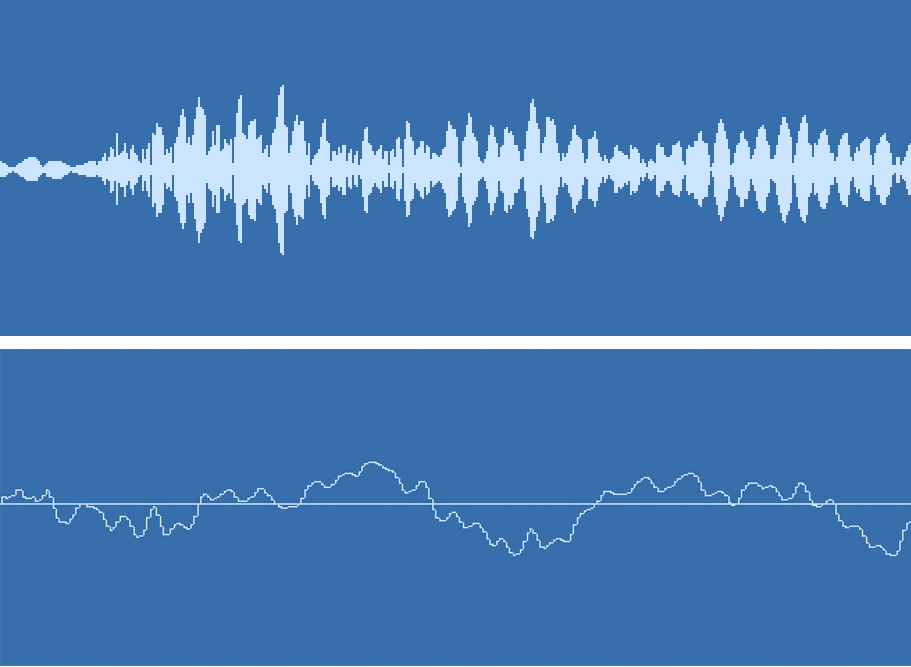
- Check sync on a hard sound. Find a clap, a plosive, or a door, zoom in, and confirm the two waveforms line up. Then play a line where you can see the lips.
Keeping it in sync: the details that go wrong
The format adds time
We extracted the same soundtrack from a 22.000-second clip three ways with the [extract tool](/extract-audio-from-video) and measured each file's decoded length in Chrome:| Format | Decoded length | Why |
|---|---|---|
| M4A (AAC copied) | 22.000 s | The original packets, untouched |
| WAV | 22.016 s | The AAC was decoded, including its final partial frame |
| MP3 | 22.056 s | The encoder adds a delay at the start and padding at the end |
The MP3 difference is a known property of the format. The LAME encoder writes its start delay, typically 576 samples, into the file's info tag, and decoders add about 529 samples more; players that don't read the tag play that silence (Hydrogenaudio discussion of LAME gapless info, retrieved 2026-10-26). That's about 23 ms at 48 kHz, which you won't hear as an echo but can see as a lip-sync lag on a close-up. WAV only adds time at the end, after the last word, which is harmless when the track starts at frame one.
The start gets moved
Most sync slips aren't drift. They're a fixed offset because the cleaned track started in the wrong place. Two common causes:
- The cleaning app trimmed the leading silence. Every word is now early by the length of that silence.
- You dropped the WAV by eye. At 30 fps, one frame is 33 ms. Snap the clip to the playhead at the start of the video instead of dragging it.
The sample rate changes
Keep video audio at 48 kHz. Cameras and phones record it, editors default to it, and EraseNoise returns a 48 kHz WAV for video. If a cleaning app exports 44.1 kHz, the editor resamples it on import. Modern editors handle that, but you can avoid the extra step by exporting at the rate you imported.
Common mistakes
- Cleaning only the part with talking. A shorter file has to be placed exactly, and it's easy to be a frame off. Clean the full length and let silence stay silent.
- Using MP3 for the round trip. Use WAV until the final export.
- Leaving the original audio on. The old track under the new one sounds like a faint echo or phasing. Mute it.
Way 2: Upload the video and get it back with a clean soundtrack
- Upload the MP4, MOV, M4V, or WebM to the video noise remover. Files up to 2 GB.
- Play the free 30-second preview and switch between the original and cleaned soundtrack. No account is needed for 3 previews a day.
- Download the full result as an MP4, where H.264 and HEVC pictures are copied without re-encoding, or as a 48 kHz WAV that is the same length as the clip and starts at 00:00, ready to put under the picture.
Full files use paid minutes. Uploads and results are deleted after 24 hours. Either download is built from the uploaded file itself, so there's nothing to align.
Putting the WAV under the clip in Premiere, DaVinci Resolve, and CapCut
| Editor | Place the clean WAV | Silence the original |
|---|---|---|
| Premiere Pro | Import the WAV, park the playhead at the clip's first frame, and drop it on an empty audio track | Right-click the clip, choose Unlink, then delete or mute the old audio |
| DaVinci Resolve | Drag the WAV to an empty track on the Edit page and snap it to the clip's start | Turn off Linked Selection, then delete the old audio or mute its track |
| CapCut (desktop) | Drag the WAV to the audio track below the clip and line it up with the clip's start | Mute the clip's own audio from the track header |
For cleaning inside each editor instead, see our guides for Premiere Pro, DaVinci Resolve, and CapCut.
Next step
Once the voice is clean, check the level. A cleaned track is often quieter than before, and YouTube won't turn a quiet video up. The free normalize audio tool sets a WAV to -14 LUFS for YouTube or -16 LUFS for a podcast, and increase video volume does the same to a finished MP4 without touching the picture.
If the recording has more than noise, such as music under the voice or a car rumble, our guides on car noise and cafe recordings cover those scenes. Or skip the round trip and upload the clip to the EraseNoise video noise remover.
Frequently asked questions
Why is my audio out of sync after editing?
Usually the cleaned track starts in the wrong place, not because it drifted. A cleaning app may have trimmed the silence at the start, or the WAV was dropped a frame or two off. Export the full length without trimming and snap it to the clip's first frame.
What sample rate should video audio be?
48 kHz. It's what cameras, phones, and video editors use. Keep the cleaned file at 48 kHz too so the editor doesn't resample it.
Can I clean audio without re-rendering the video?
Yes. Upload the video to a tool that replaces only the soundtrack. EraseNoise copies H.264 and HEVC pictures into the new MP4 as they are, so the picture is not re-encoded.
Should I use MP3 or WAV when I extract audio to clean it?
WAV. MP3 adds a short silence at the start, about 56 ms longer in our test, which can show up as lip-sync lag. Save MP3 for the final version you share.
Sources
- Adobe, Extract audio from video, retrieved 2026-10-26.
- Hydrogenaudio, LAME encoder delay and gapless info, retrieved 2026-10-26.
- Measured durations: EraseNoise extract tool in Chrome on a 22.000-second H.264 and AAC clip, 2026-10-26.