YouTube Audio Quality: How to Fix Echo, Fan, AC, and Keyboard in a Talking-Head Video
Improve the audio quality of your YouTube videos: fix room echo first, then fans and AC, keyboard clicks, and uneven volume. A simple chain for every upload, with real before/after audio.
Most talking-head videos lose audio quality to four things: room echo, a fan or AC, keyboard noise, and uneven volume. Each one has its own fix, and the echo is the one worth fixing in the room first. The other three can mostly be handled after recording, in a fixed order.
This guide is the map. It tells you how to recognize each problem and links to a detailed guide for each. To check a recording you already have, upload it to the EraseNoise background noise remover and compare a free 30-second preview with the original.
Key Takeaways
- Fix echo in the room, because it's the hardest of the four to remove afterward. Soft furnishings and a closer mic do more than any plugin.
- Fans and air conditioners are steady noise and clean up well after recording. In our library, a distant fan went from 1.52 to 3.56 on DNSMOS overall quality.
- Keyboard clicks under your words are the weak spot for every noise remover, ours included. Prevent them with a noise gate and a pause while you type.
- YouTube turns loud videos down but doesn't turn quiet ones up. Normalize to about −14 LUFS before you upload.
The four problems in a home studio
| Problem | How to recognize it | Fix it in the room? | Fix it afterward? | Go here |
|---|---|---|---|---|
| Room echo | Your voice sounds distant or boxy; words ring for a moment | Yes, and that's the best fix | Partly | Remove echo, remove reverb |
| Fan, AC, computer | A steady hiss or hum under everything | Switch it off if you can | Yes, well | Fan noise remover, AC noise guide |
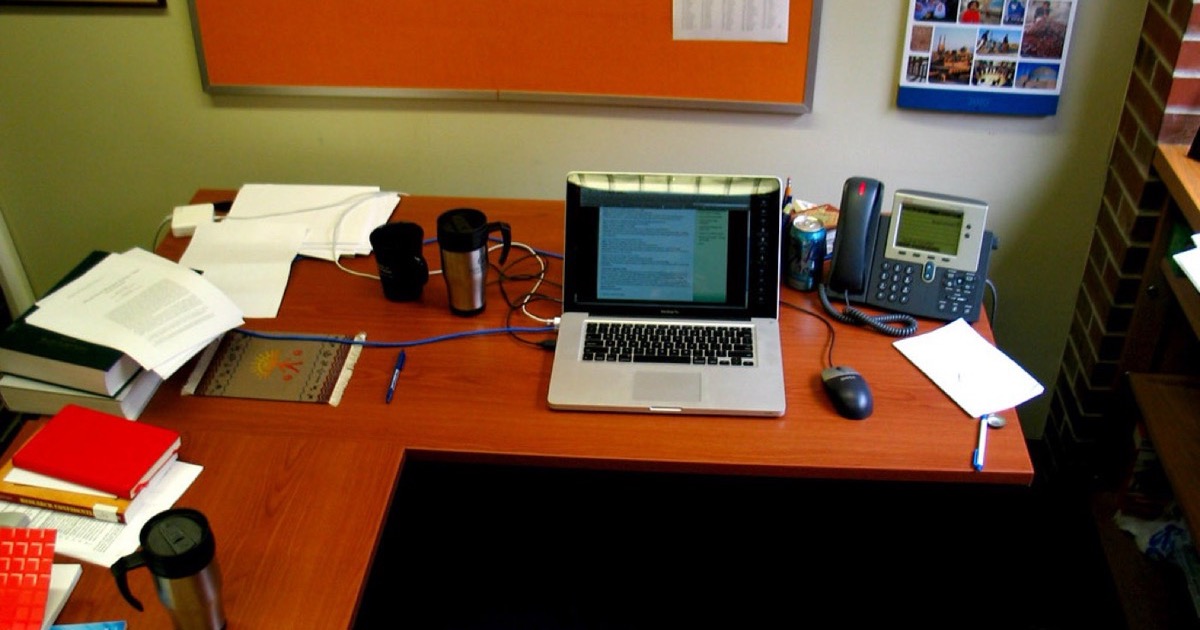
| Keyboard and mouse | Clicks between or under words | Yes: gate, mic aim, pauses | Between words yes, under words no | Keyboard noise guide |
| Uneven or low volume | Viewers turn you up, then down for the next video | Set gain properly | Yes, easily | Normalize audio |
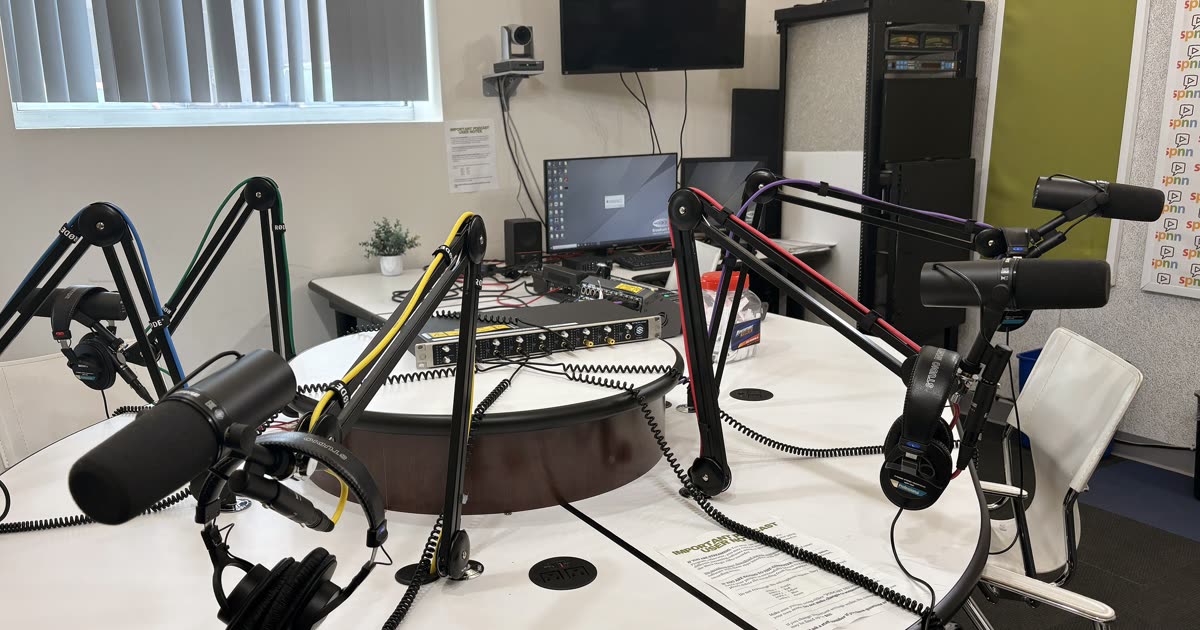
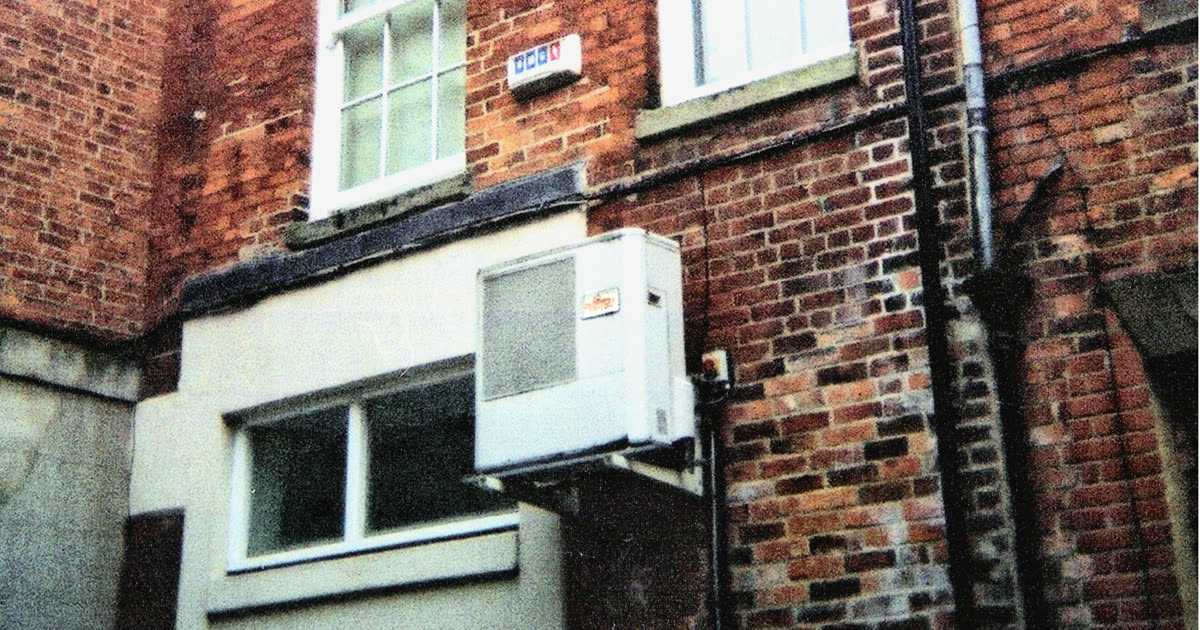
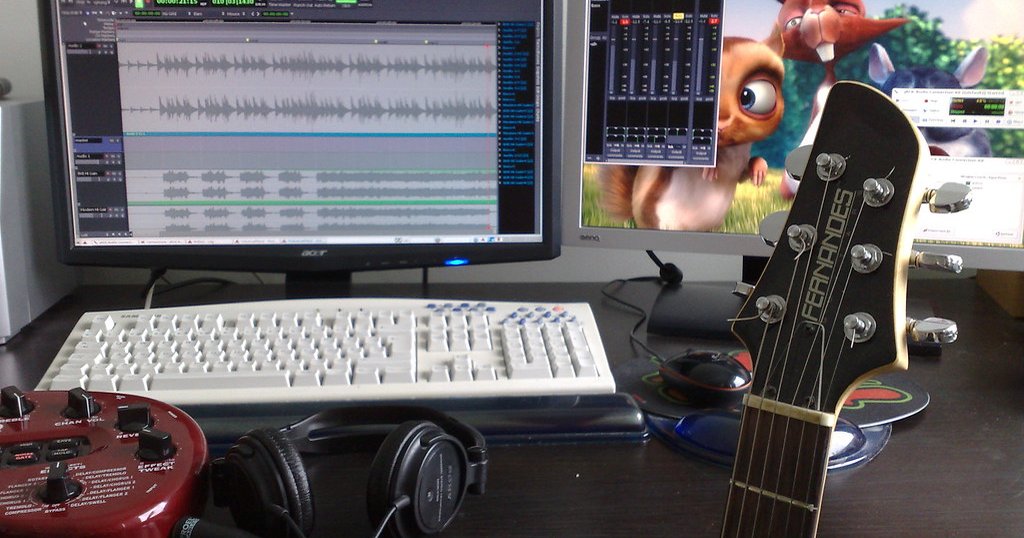
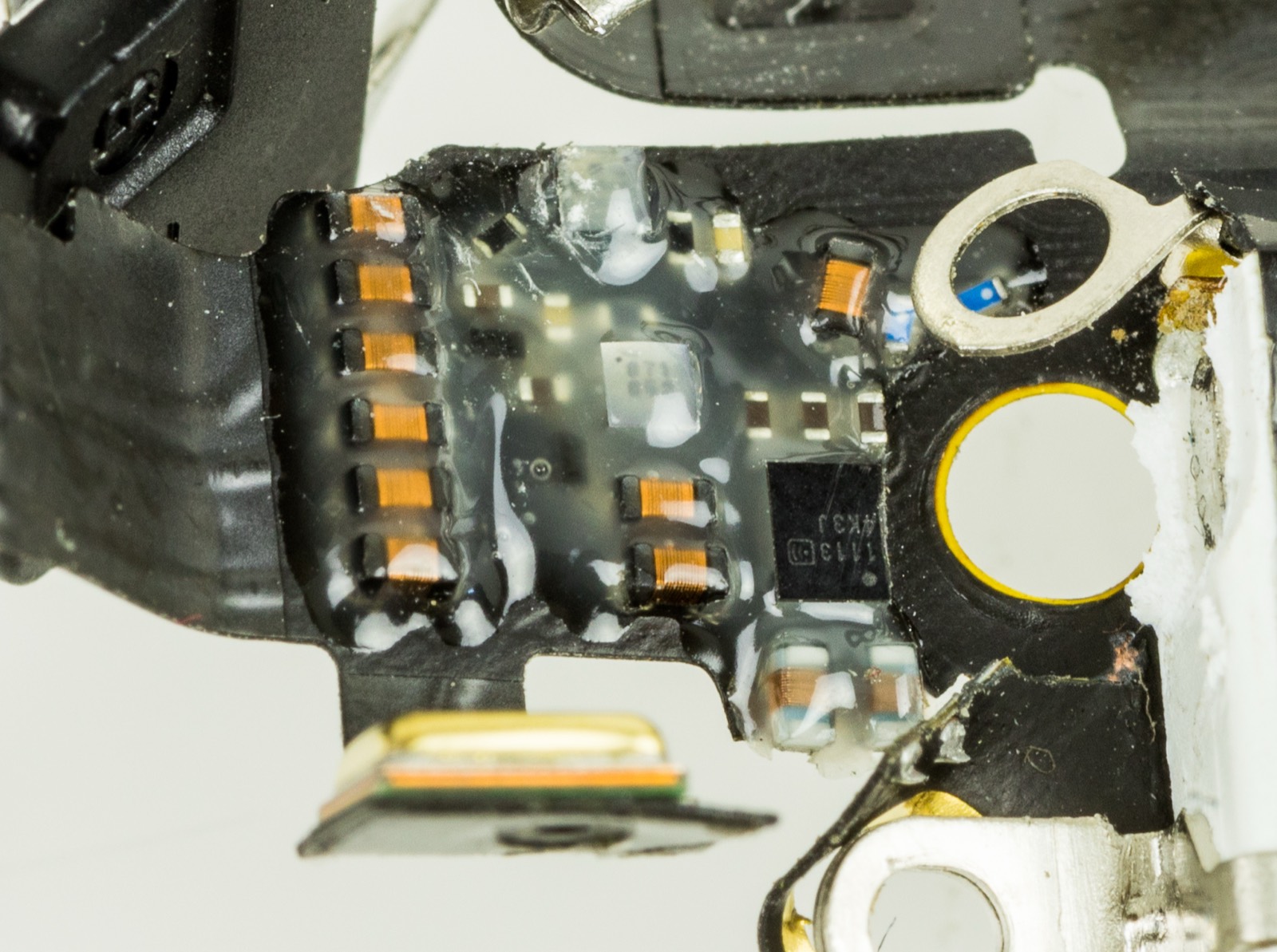
Photo: Myotus, CC BY 4.0, via Wikimedia Commons.
Fix the room first: echo
Echo is your own voice reflecting off walls, desks, and windows and arriving at the mic a moment later. It's the hardest of the four to remove afterward because it is voice: there's no clean line between the words and their reflection.
What works in the room:
- Get the mic closer. At 5–10 cm, your direct voice is much louder than its reflections. This is the single biggest fix.
- Add soft things. A rug, curtains, a sofa, a duvet hung behind the camera, a full bookshelf. You don't need acoustic panels to make a difference; you need fewer bare, parallel surfaces.
- Move away from walls and corners. Sit with the room in front of you rather than facing a bare wall.
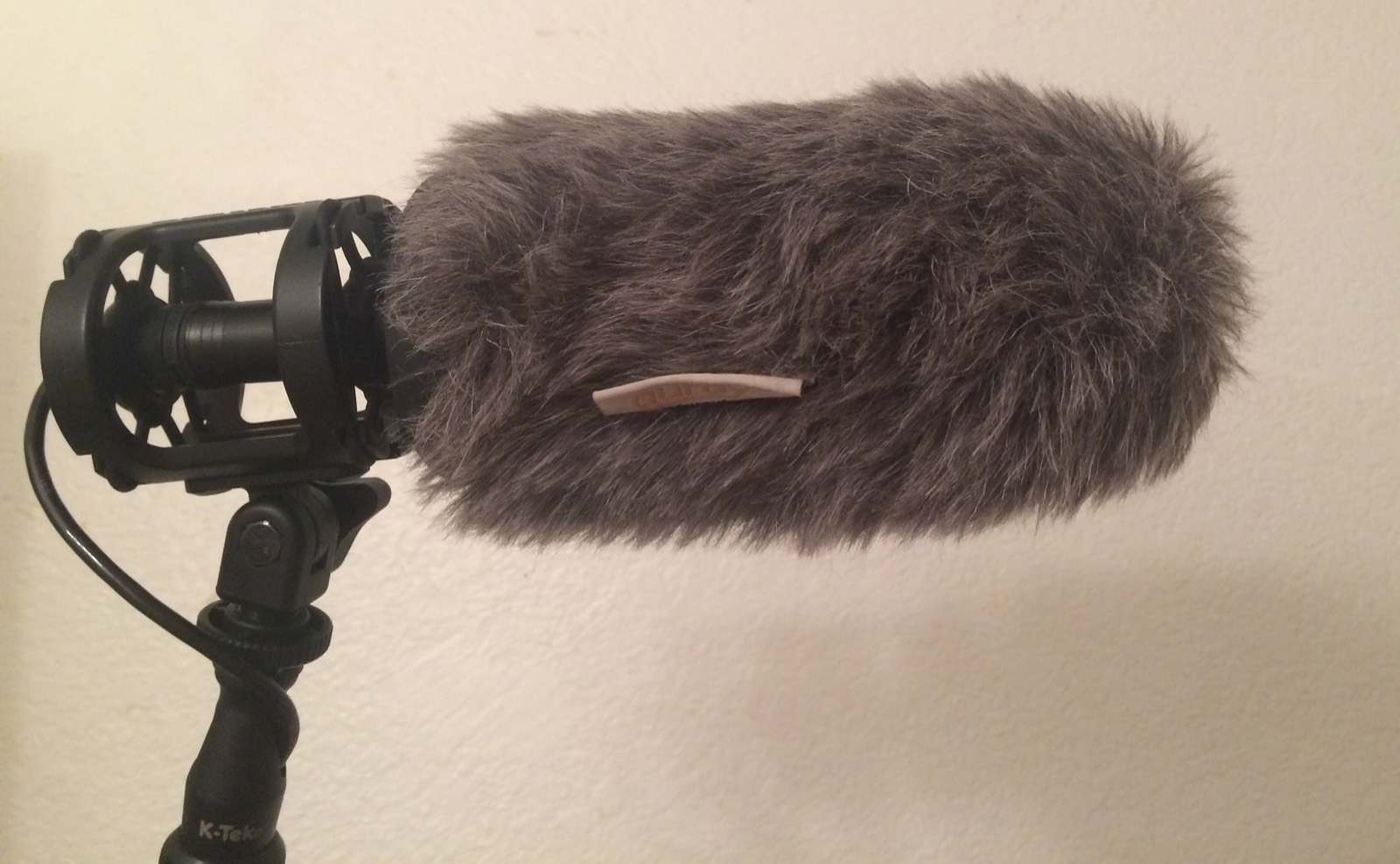
- Use a dynamic mic. It hears less of the room at the same distance. See best microphone for YouTube if your room is noisy.
What works afterward: a separate echo you can count after a word goes to the echo remover; a dense room wash with no distinct repeat goes to the reverb remover. Both have a free 30-second preview.
Fan, AC, and computer noise
Steady noise is the easy case. It doesn't change from second to second, so noise removers can learn it and take it out with little damage to the voice.
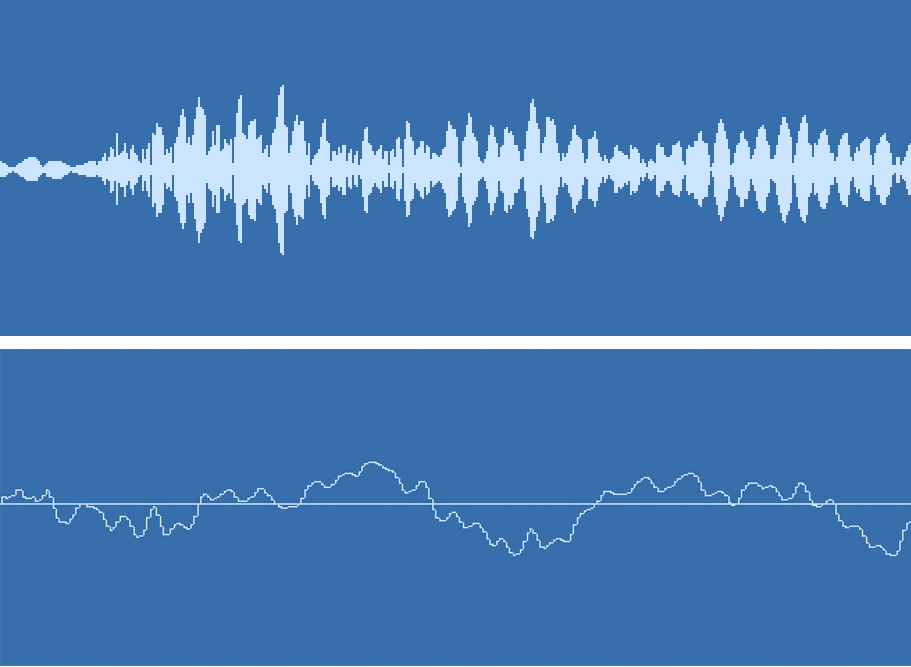
A real recording with a distant fan from the Microsoft DNS Challenge test set, before and after EraseNoise, with no hand edits. DNSMOS overall quality went from 1.52 to 3.56 out of 5, and NISQA voice naturalness from 0.82 to 4.56:Distant fan, original
Distant fan, cleaned
For a desk fan or PC, use the fan noise remover. For air conditioning, including the moment the compressor kicks in, see how to remove air conditioner noise. If the voice sounds robotic or underwater after cleaning, you've removed too much; this guide explains why and how to fix it.
Keyboard and mouse
This is the problem to prevent rather than fix. Clicks between your sentences can be cut or gated. Clicks that land on a word can't be removed cleanly by any tool. On our own typing sample, EraseNoise moved overall quality only from 2.63 to 2.70, and we say so on the samples page.
The fixes that work: a Noise Gate filter on your mic in OBS, the back of the mic aimed at the keyboard, and a habit of pausing while you type. The keyboard noise guide has the settings, and our OBS guide covers Noise Suppression and the gate together.
Volume: why YouTube turns loud videos down
YouTube normalizes playback loudness, but only in one direction. A video louder than its reference is turned down; a quieter video isn't turned up, as Ian Shepherd showed by reading the "Content loudness" value in YouTube's Stats for nerds panel (Production Advice, retrieved 2026-10-26). YouTube doesn't publish its reference, but loudness-meter makers put it around −14 LUFS integrated, with true peaks under −1 dB (Youlean, retrieved 2026-10-26).
So the practical rule is: get your finished audio near −14 LUFS. Too loud costs nothing but squashed peaks; too quiet means your video plays quieter than the one before it.
- For an audio file or voiceover: the free normalize audio tool measures loudness in LUFS and sets it to −14, with peaks held under −1 dB. It runs in your browser.
- For a finished video: increase video volume does the same to the MP4's soundtrack and copies the picture as it is.
A simple chain for every upload
- Record: dynamic or close mic, fan off, noise gate on, a pause while you type.
- Clean: remove steady noise, with the strength low enough that the voice stays natural. Use the background noise remover for audio or the video noise remover for the whole clip.
- Trim: cut long pauses. The silence remover is free and runs in your browser.
- Level: normalize to −14 LUFS with the normalize audio tool.
- Export and check: listen once on headphones and once on a phone speaker before you upload.
If you edit in an NLE, the same steps fit inside it: see our guides for Premiere Pro and DaVinci Resolve. To swap a cleaned track back under a clip without losing lip sync, see how to clean the audio in a video and put it back in sync.
Next step
Start with the problem you can hear most. If it's a hum, upload a clip to the EraseNoise background noise remover and compare 30 seconds free. If it's echo, change the room before the next recording. If it's volume, the normalize audio tool takes seconds and never uploads your file.
Frequently asked questions
How do I improve the audio quality of my YouTube videos?
Fix the room's echo with soft furnishings and a closer mic, switch off fans while recording, clean any steady noise afterward, and normalize the final audio to about −14 LUFS. Those four steps cover most talking-head videos.
Why does my YouTube audio sound echoey?
Your voice is reflecting off bare walls and hard surfaces and reaching the mic late. Move the mic closer, add rugs, curtains, or a duvet, and sit away from walls. Echo already in a recording can be reduced with an echo or reverb remover.
What loudness should I use for YouTube?
About −14 LUFS integrated, with peaks under −1 dB. YouTube turns louder videos down to its reference but doesn't turn quieter ones up, so a quiet upload plays quietly.
Do I need acoustic panels?
No. Soft things you already own, like rugs, curtains, a sofa, a bed, or a duvet, absorb a lot of echo, and moving the mic closer helps more than panels. Panels help most in rooms that are otherwise bare.
Sources
- Ian Shepherd, Production Advice, Are you confused about exactly what YouTube's playback volume normalization is doing to your music?, retrieved 2026-10-26.
- Youlean, YouTube loudness normalization, retrieved 2026-10-26.
- Microsoft, DNS Challenge test set, source of the fan recording, retrieved 2026-10-26.