Why Noise Removal Makes Your Voice Sound Robotic or Underwater
A robotic, watery, or underwater voice after noise reduction means the cleanup took part of the voice. Why it happens and how to fix it in Audacity, CapCut, Premiere, or with a strength slider.
A voice sounds robotic or underwater after noise removal when the cleanup also removes part of the voice; turning the strength down, or mixing some of the original back in, usually fixes it. The noise reducer couldn't fully tell your voice from the noise, so it took a bit of both, and what's left has gaps that the ear hears as metallic, warbly, or watery.
You don't need a different tool to fix it, just less of the same one. To hear the difference on your own recording, upload it to the EraseNoise background noise remover, play the free 30-second preview, and drag the strength slider down until the voice sounds like a person again.
Key Takeaways
- The robotic or underwater sound is an artifact of over-processing: the noise reducer removed parts of the voice along with the noise.
- Audacity's manual calls the related artifact "musical noise" and recommends the lowest noise reduction value that makes the noise acceptable.
- In our fan recording, 80% strength left the fan about 14 dB quieter than the original, and 60% about 8 dB. At 100% the fan was gone, but voice naturalness only reached 2.85 out of 5.
- The fix is almost always the same: less reduction, or more of the original mixed back in.
What the robotic sound is
There are two related artifacts, and they come from the same place.
- Robotic, metallic, or warbly voice. Parts of the voice that sat close to the noise were removed. The voice loses its smooth texture and sounds like a low-bitrate call.
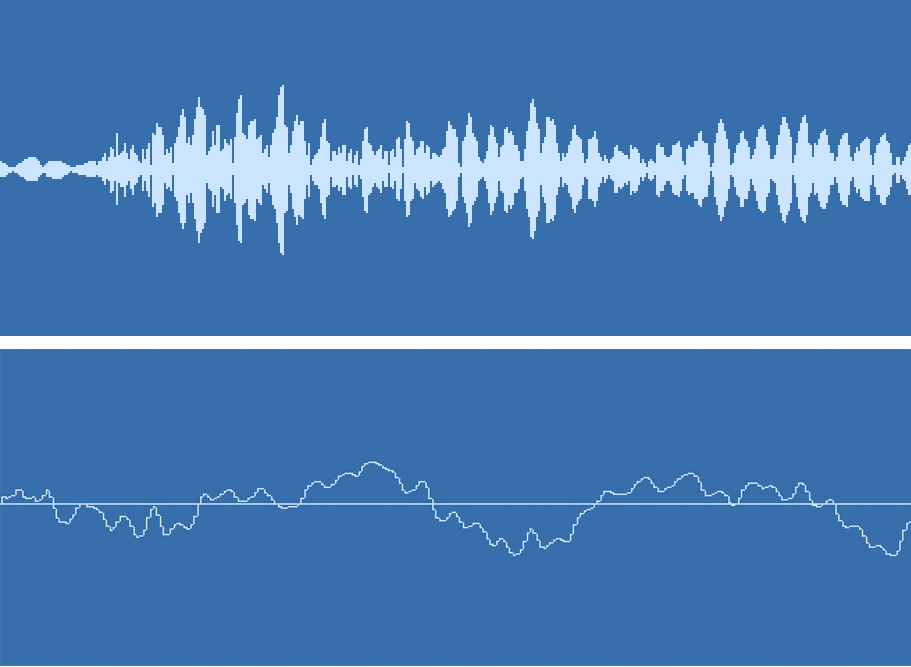
- Musical noise, or "tinkling." The leftover noise is broken into tiny random tones. Audacity's manual describes it as "random bursts of very short tones at random frequencies," also called "bird song" or "tinkly-bells" (Audacity Manual: Noise Reduction, retrieved 2026-10-26).
- Underwater or hollow. Common with speech models at full strength. The pauses go to dead silence while a trace of the room stays under the words, so the background seems to switch on every time the speaker talks.
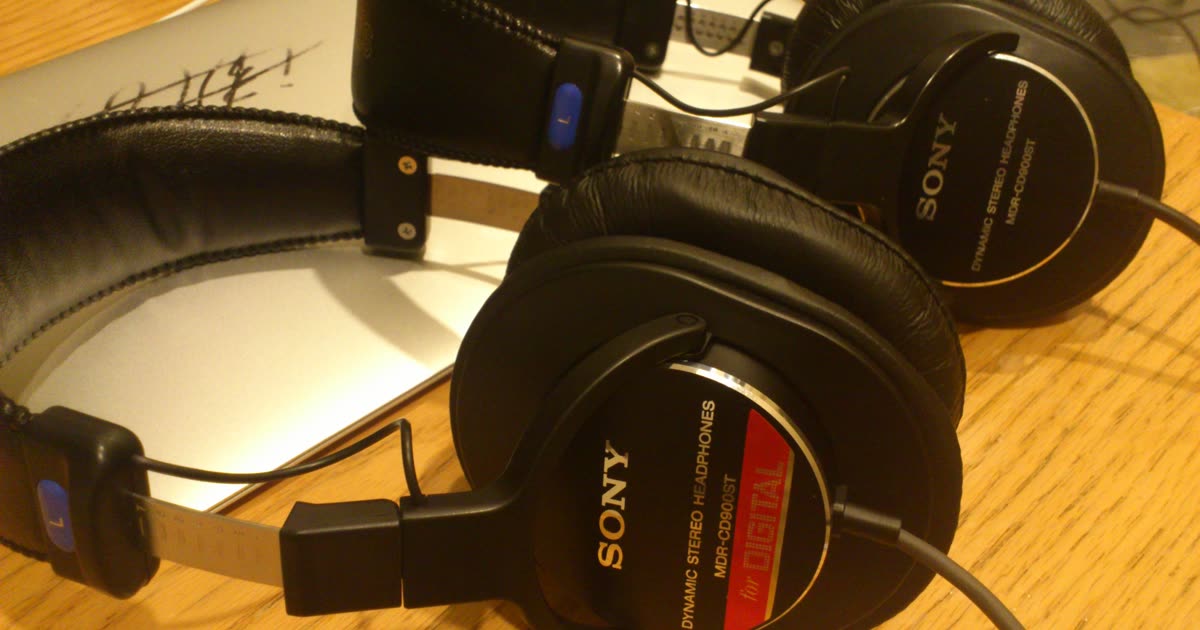
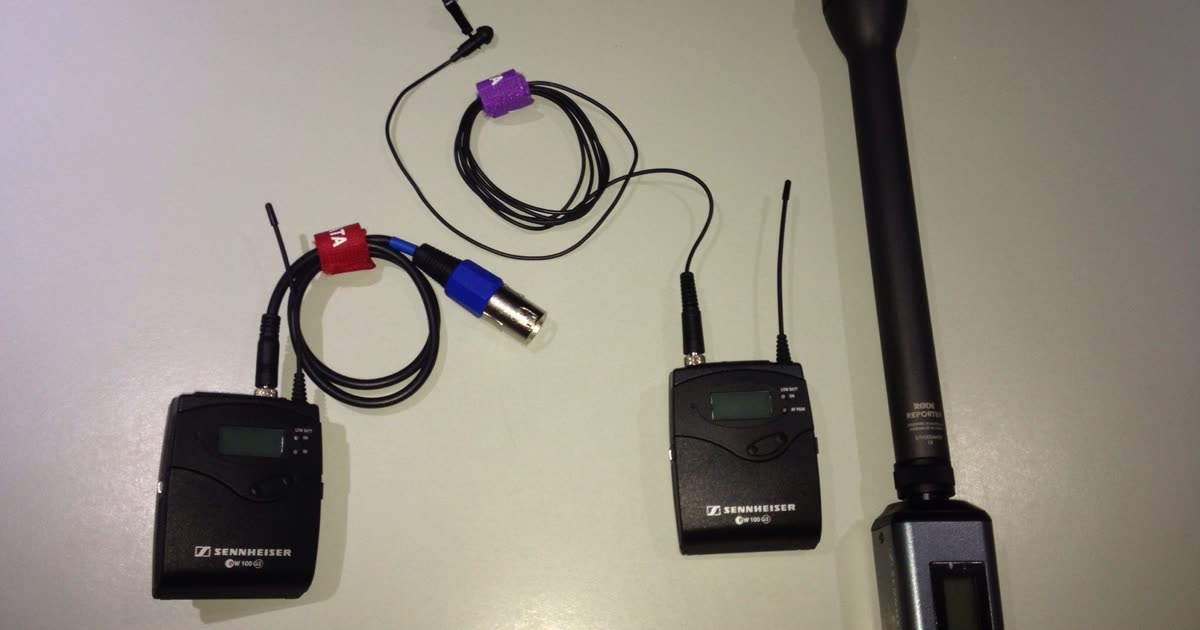
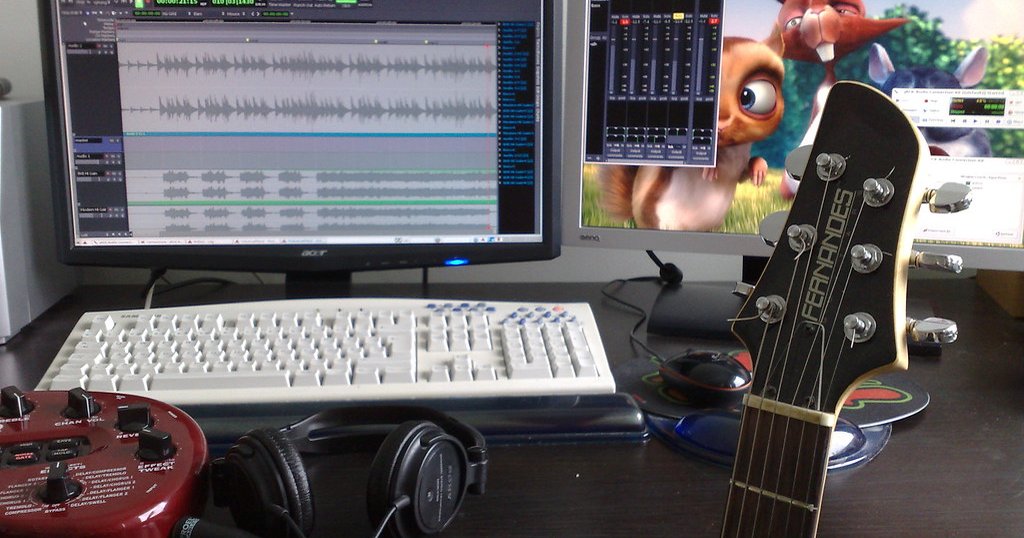
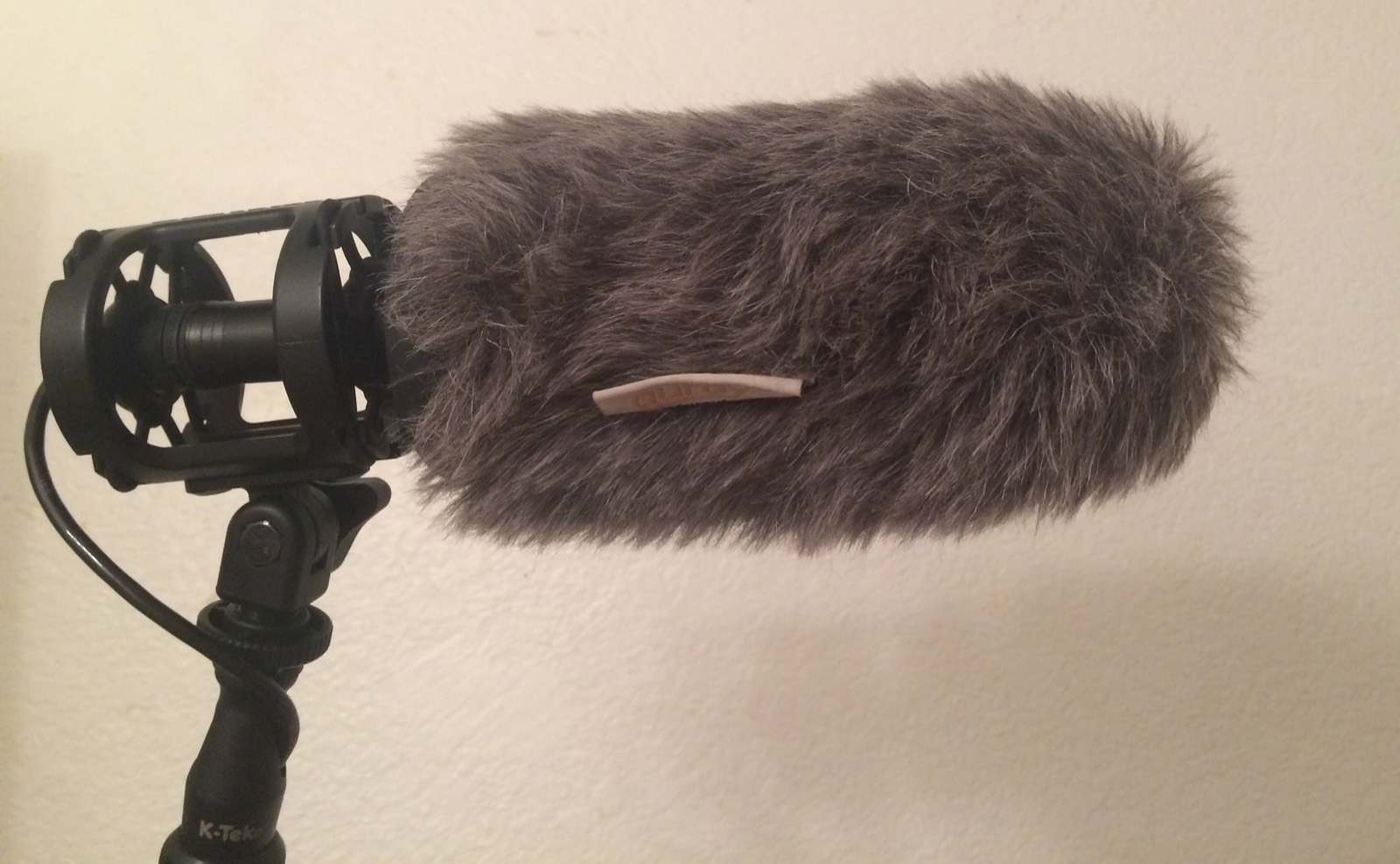
Photo: Masahiko OHKUBO, CC BY 2.0, via Wikimedia Commons.
How to hear it
Listen on headphones, not laptop speakers, and check three places:
- The end of words. S, F, and T sounds turn swishy or lispy.
- The pauses. Dead silence that cuts in and out between words, or a faint twinkling.
- Long vowels. A held "ooo" or "aaa" that wobbles or sounds like it's coming through a tube.
Then play the original right after. If the original sounds more like a person, even with the noise, the cleanup went too far.
Three causes
- Too much reduction. The most common. Audacity's manual warns that higher noise reduction values "will result in damage to the audio that remains," and that too much sensitivity removes "some of the desired signal as well."
- The wrong noise sample. A classic noise reducer learns from a stretch you pick. If that stretch had a breath or a soft word in it, the tool learns that as noise too and removes it from every sentence.
- Noise that overlaps the voice. Fans, cars, and crowds share frequencies with speech. The more they overlap, the more voice goes out with the noise at any setting. Our car noise guide shows this with measurements.
How to fix it in Audacity, CapCut, and Premiere
Audacity
Undo, then run Noise Reduction again with lower settings. Start at the defaults, 6 dB of reduction and sensitivity 6.00, and choose Residue to preview what will be removed. If you can hear recognizable bits of the voice in the residue, the manual says reduction or sensitivity is too high. Take the noise profile from a stretch with no breaths. Full steps: Audacity noise removal guide.
CapCut
CapCut's Reduce noise sits in the clip's Audio controls. If the voice turns thin or metallic, switch it off and compare. Don't stack it with Enhance voice at the same time; change one control at a time. See our CapCut guide.
Premiere Pro
With Enhance Speech, lower Mix Amount to blend some of the original back in. With Repair, Reduce Noise in the Essential Sound panel, lower the amount. Our Premiere Pro guide has the details.
With a strength slider
A strength slider is the same idea as Premiere's Mix Amount: it blends the original back in under the cleaned voice. In EraseNoise, 100% is fully cleaned, 80% keeps a fifth of the original, and 60% keeps two fifths.
We mixed a real fan recording from the Microsoft DNS Challenge test set at the same ratios the slider uses and measured the level of the quietest fifth of the file, the pauses, in quarter-second windows with ffmpeg:| Version | Fan level in the pauses | Change |
|---|---|---|
| Original | −18.1 dB | — |
| 60% strength | −26.2 dB | 8 dB quieter |
| 80% strength | −32.2 dB | 14 dB quieter |
| 100% strength | −71.8 dB | Gone |
At 100%, the fan's DNSMOS background score went from 1.64 to 4.08 out of 5, but NISQA voice naturalness only reached 2.85. Listen to the four versions and decide where the voice stops sounding like a person:
Original
60% strength
80% strength
100% strength
To try it on your file: upload it to the background noise remover, play the free 30-second preview, and move the slider. The preview needs no account for 3 tries a day; the full file uses paid minutes, and uploads are deleted after 24 hours.
When the original is the better choice
Sometimes the honest answer is not to clean it. Keep the original when:
- The noise is light and the voice is clear. Listeners tune out a little room tone; they don't tune out a robotic voice.
- Another person is talking close to the speaker. No tool removes a nearby voice without damaging the main one.
- Every setting that removes the noise also makes the voice warble. That usually means the noise and the voice overlap too much, and a re-recording is the real fix.
How it differs from similar problems
| What you hear | What it is | Fix |
|---|---|---|
| Robotic or underwater after cleanup | Over-processing artifacts | Less reduction or a lower strength |
| Robotic on a live call | Network packet loss or a low bitrate, not noise reduction | Check the connection |
| A hollow, distant voice before any cleanup | Room echo or reverb | The echo remover or reverb remover |
| A crunchy, distorted voice | Clipping while recording | Can't be undone; lower the gain next time |
Next step
If your cleanup sounds hollow rather than robotic, our ambient noise guide explains why leaving some room tone keeps a voice natural. If the voice is clean but now quiet, set its level with the free normalize audio tool.
To compare strengths on your own recording, upload it to the EraseNoise background noise remover and listen to the preview at a few slider positions.
Frequently asked questions
Why does my voice sound robotic after noise reduction?
The noise reducer removed parts of your voice along with the noise, usually because the reduction or sensitivity was set too high or the noise sample included a breath or a word. Undo it and try again with less reduction.
How do I make noise reduction sound natural?
Use the lowest setting that makes the noise acceptable, and leave a little room tone. With a strength or mix slider, start around 80% and compare with the original on headphones.
What is the best noise reduction strength?
There isn't one number, but most voices sound natural somewhere between 60% and 85%. In our fan recording, 80% already made the fan about 14 dB quieter than the original without the hollow sound of 100%.
Why does my audio sound underwater?
The cleanup made the pauses completely silent while a trace of the room stayed under the words, or it removed parts of the voice that overlapped the noise. Lower the strength so the pauses keep a little of the room.
Sources
- Audacity Team, Audacity Manual: Noise Reduction, retrieved 2026-10-26.
- Adobe, Apply Enhance Speech in Premiere Pro, retrieved 2026-10-26.
- Microsoft, DNS Challenge test set, source of the fan recording, retrieved 2026-10-26.
- FFmpeg, astats filter documentation, used for the pause-level measurements, retrieved 2026-10-26.