DJI Mic Noise Cancellation: When to Turn It On, and What It Misses
How to turn on noise cancellation on DJI Mic 2, Mic Mini, and Mic 3, when to leave it off, what it can't remove, and how to clean a recording you made without it.
DJI Mic noise cancellation lowers steady background sound while you record, but it can thin a voice and it can't be undone, so turn it on for loud, steady places and leave it off when the room is quiet. On a DJI Mic 2 or Mic Mini you toggle it with one press of the transmitter's power button; on a DJI Mic 3 it's a double press.
If you've already recorded and the noise is still there, or you forgot to switch it on, upload the clip to the EraseNoise video noise remover and compare a free 30-second preview with the original. The details for each model are below. They come from DJI's manuals and FAQ pages; we haven't run our own tests with these mics.
Key Takeaways
- DJI Mic 2, Mic Mini, and Mic 3 have noise cancelling. The first DJI Mic doesn't.
- Mic Mini and Mic 3 have two levels, called strong and basic. Basic is for steady indoor noise like a fan; strong is for loud places.
- Noise cancelling is baked into the audio it sends. Only the Mic 3 can also save an unprocessed copy on the transmitter.
- It's built for steady noise. Wind gusts, sudden sounds, and other people talking get through, and those need a windscreen, a re-take, or a different fix.
Which DJI Mic models have noise cancellation
| Model | Noise cancelling | How to toggle it on the transmitter | Levels | Unprocessed backup |
|---|---|---|---|---|
| DJI Mic (first generation) | No | — | — | — |
| DJI Mic 2 | Yes | Press the power button once | On or off | Not stated by DJI; test it before relying on it |
| DJI Mic Mini | Yes | Press the power button once | Strong or basic, set in DJI Mimo or on a supported Osmo camera | No internal recording |
| DJI Mic 3 | Yes | Press the power button twice | Strong or basic, set on the receiver, in DJI Mimo, or on a supported Osmo camera | Yes: dual-file recording saves an unprocessed orig file next to the processed edit file |
Sources: DJI Mic 2 user manual, DJI Mic Mini FAQ, and DJI Mic 3 FAQ, all retrieved 2026-10-26.
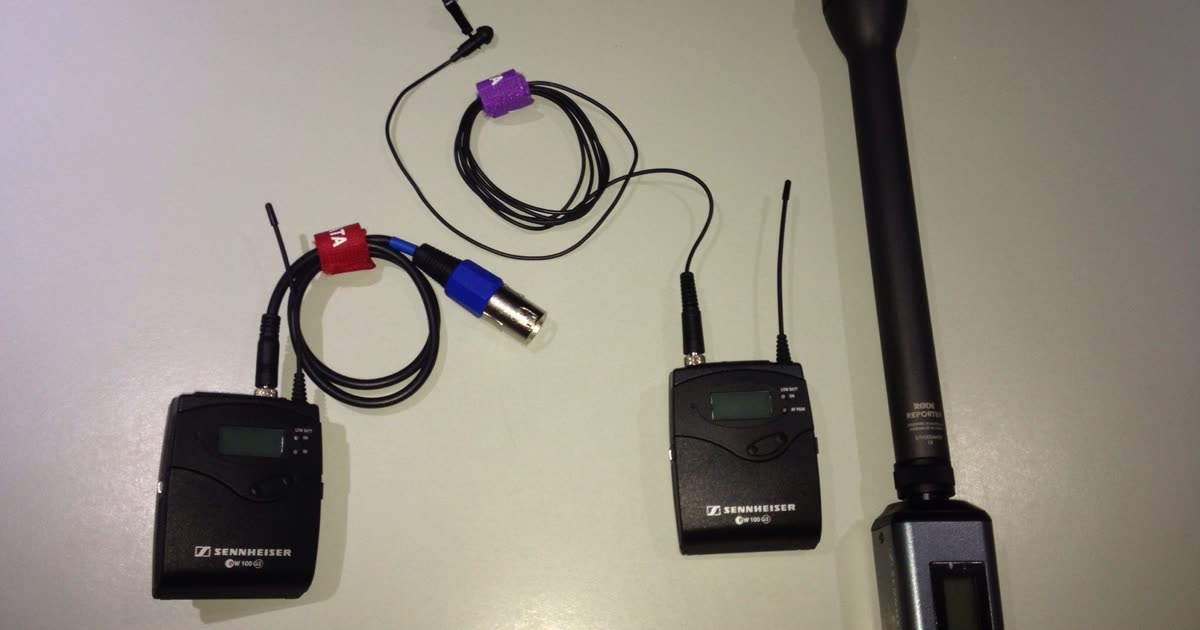
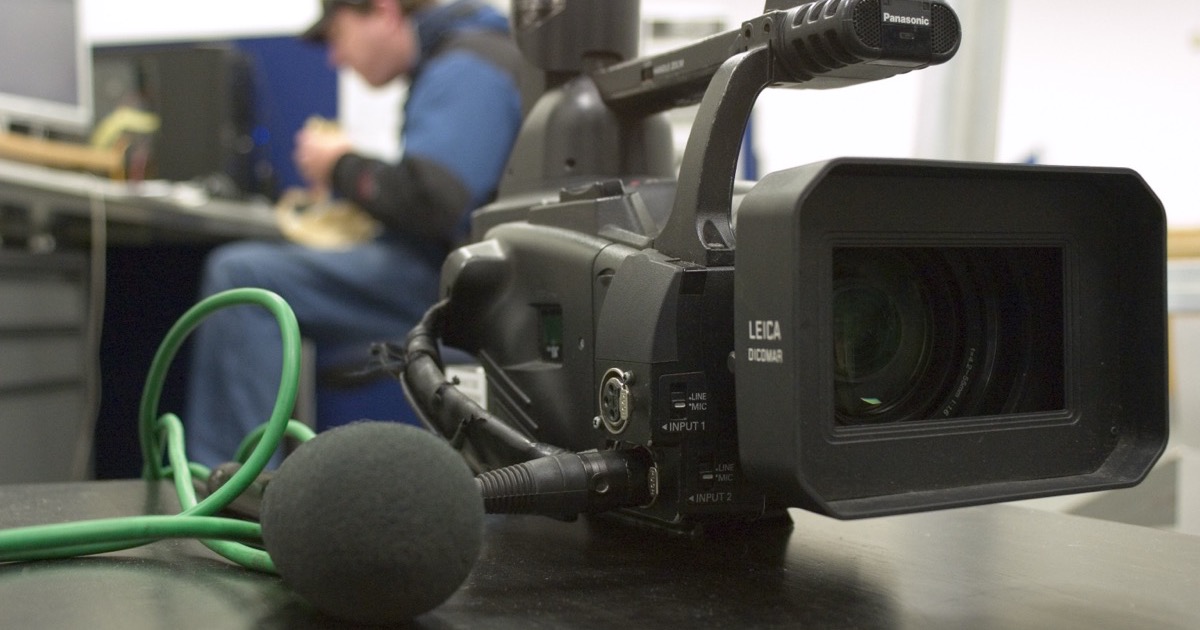
Photo: Stephan Ridgway, CC BY 2.0, via Wikimedia Commons.
How to turn it on
DJI Mic 2
- On the transmitter: press the power button once. The status light turns solid yellow while it's linked to the receiver, or blinks yellow when it isn't linked, and the transmitter vibrates briefly.
- On the receiver: swipe up on the home screen, on the left side for transmitter 1 or the right side for transmitter 2, then tap the noise reduction icon.
- Connected to a phone over Bluetooth: noise reduction and standalone recording aren't available on the transmitter, per the manual. If you want it while recording to a phone, connect through the receiver instead.
The Mic 2 also has a Low Cut setting that filters out sound at 100 Hz and below. That's a different tool: it only removes rumble, and it's a good default for outdoor and car recordings.
DJI Mic Mini
- On the transmitter: press the power button once to turn noise cancelling on or off.
- Pick the level: in the DJI Mimo app, or in the menu of an Osmo Action 5 Pro, Osmo Action 4, or Osmo Pocket 3 connected through DJI OsmoAudio.
- Connected straight to a phone: the level can't be changed in Mimo and defaults to strong.
- With the phone-version receiver: use the receiver's switch, with off, low, and high positions. The transmitter button and the app don't change it in that setup.
DJI Mic 3
- On the transmitter: press the power button twice to turn noise cancelling on or off.
- Pick the level on the receiver: swipe to the group control page to set strong or basic for every transmitter at once, or tap one transmitter to set it alone. Phone users set the level in DJI Mimo.
- Turn on dual-file recording if you want a safety net. The transmitter then keeps an unprocessed
origfile alongside the processededitfile, so you can go back to the version without noise cancelling.
When to use it, and when to leave it off
Turn it on when the noise is loud and steady. A busy street, a market, a fan or air conditioner you can't switch off, an engine. That's what it's built for, and lowering it at the source means less work afterward.
Leave it off when the room is quiet. In a quiet room there's little to remove, and any processing that lowers noise can take a little of the voice with it. You can always lower noise later, but you can't add back what was removed during recording.
Use basic before strong. On models with two levels, start with basic for indoor hum. Save strong for places where the background competes with your voice.
Do a ten-second test. Record a few sentences with it on and off in the actual location, and listen on headphones. If your voice sounds thinner or slightly underwater with it on, that's the trade-off, and you can decide which bothers you more.
What it doesn't remove
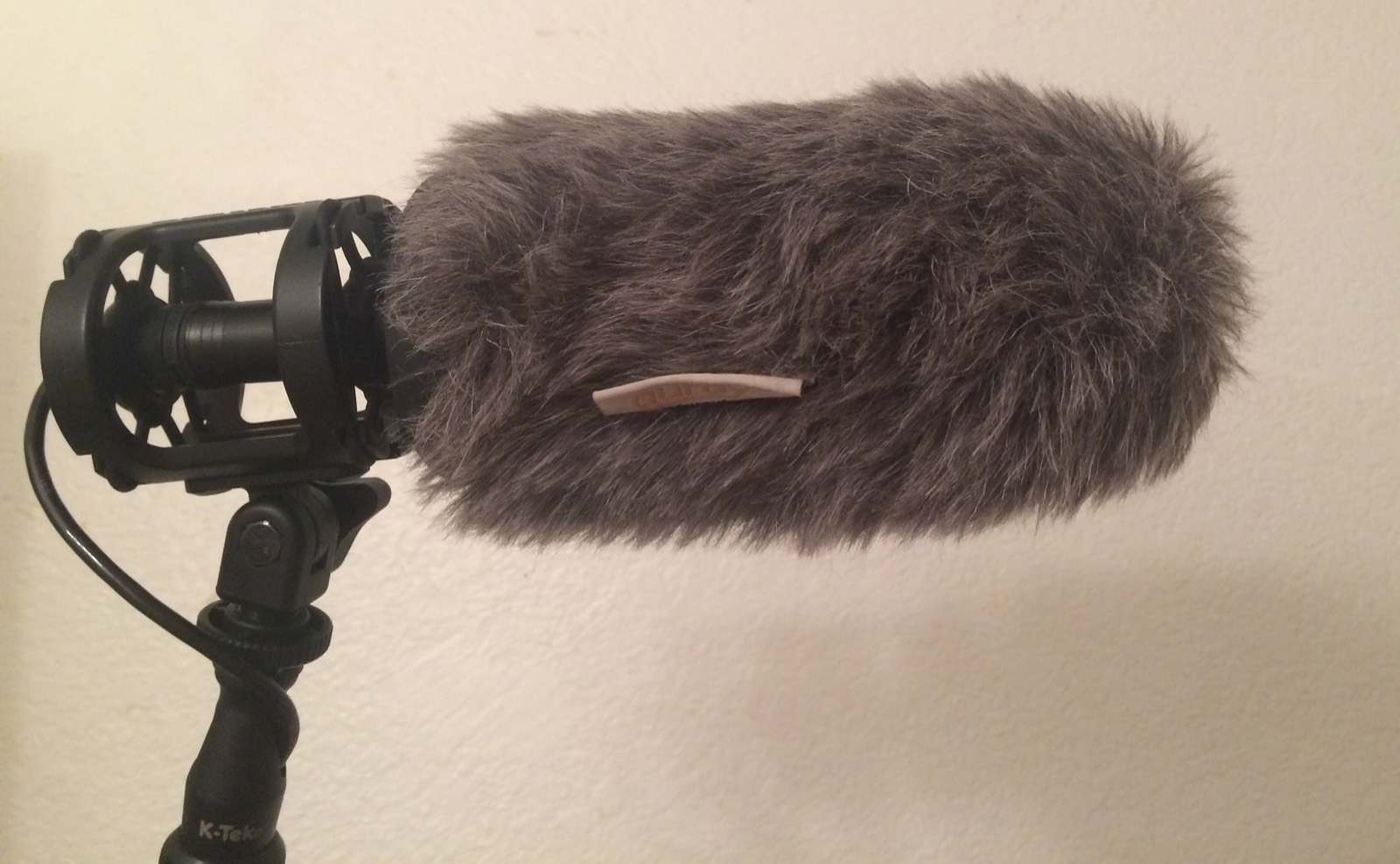
- Wind. Wind on a mic is air pressure hitting the capsule, not background noise. Use the furry windscreen that came with the kit. Our wind noise guide explains why.
- Sudden sounds. A horn, a door, a dog bark, or a dropped cup is over before any noise reduction can adapt.
- Other people talking. Nearby voices are speech, and speech is what the mic is trying to keep.
- Clipping. If the input gain is too high and the voice distorts, noise cancelling won't fix it. The Mic 2's safety track records the right channel 6 dB quieter to protect against that.
- Room echo. Echo is your own voice reflected back, so it passes through as voice.
Forgot to turn it on? Fix the recording afterward
You can lower steady noise after the fact, often with more control than in the mic, because you can listen and choose how far to go.
- Upload the video or the audio file to EraseNoise. Videos keep their picture: H.264 and HEVC are copied, not re-encoded.
- Play the free 30-second preview and switch between the original and the cleaned version. You get 3 previews a day without an account.
- If the voice sounds thin, lower the strength slider to keep some of the room. Unlike the mic's switch, you can change your mind.
- Download the MP4, or a 48 kHz WAV to place under the clip in your editor. Full files use paid minutes; uploads are deleted after 24 hours.
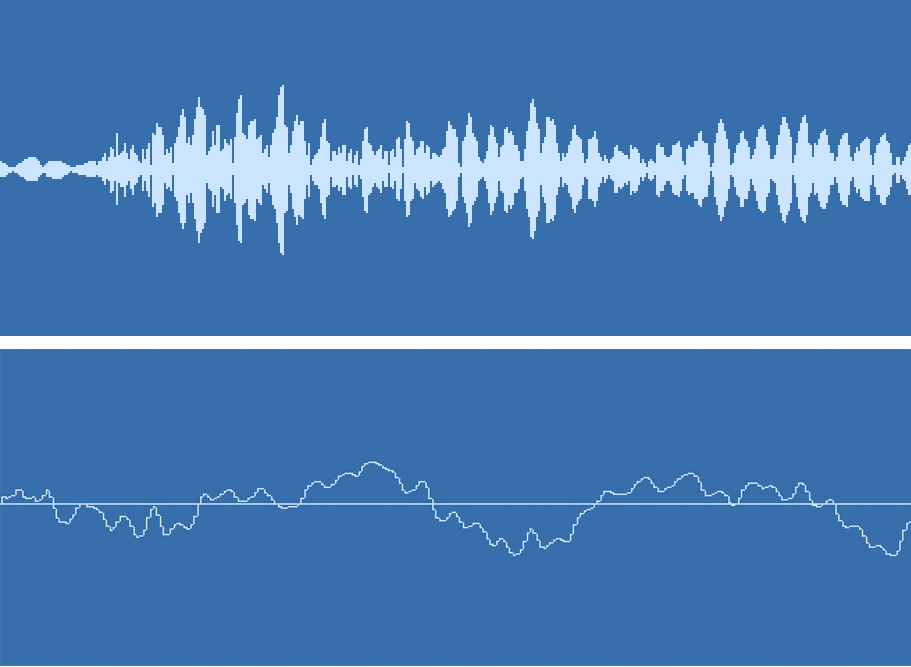
Here's what that looks like on a real street recording from the Microsoft DNS Challenge test set (not recorded on a DJI Mic). DNSMOS background went from 1.68 to 4.17 out of 5, and voice naturalness from 1.04 to 4.32:
Street, original
Street, cleaned
If you recorded on a Mic 3 with dual-file recording, start from the orig file. You'll be choosing the noise reduction once, instead of stacking a second pass on top of the first.
Next step
Still choosing a mic? Our best mic for vlogging in noisy places compares clip-on, on-camera, and phone mics by how well they keep your voice above the scene. For scene-by-scene fixes, from cafes to cars, see the vlogger's guide to clean audio.
Frequently asked questions
Does DJI Mic 2 have noise cancelling?
Yes. Press the transmitter's power button once to turn it on or off; the light shows yellow while it's on. You can also toggle it per transmitter from the receiver's touchscreen. It isn't available when the transmitter is connected straight to a phone over Bluetooth.
Should I use noise cancellation on a DJI Mic?
Use it in loud places with steady noise, like a street, a market, or next to a fan. Leave it off in quiet rooms. It can't be undone after recording, except on the Mic 3 with dual-file recording turned on.
What's the difference between strong and basic noise cancelling?
On the Mic Mini and Mic 3, basic is the lighter setting for steady indoor noise such as a fan or air conditioner. Strong removes more and is meant for noisy places. Start with basic and only go to strong if the background still competes with your voice.
Can I remove noise from a DJI Mic recording later?
Yes. Steady noise lowers well after recording. Upload the clip to a noise remover, compare a preview, and keep some of the room if the voice starts to sound thin. Wind that overloaded the mic and other people talking are hard to fix afterward.
Sources
- DJI, DJI Mic 2 user manual (2024, hosted by Adorama), retrieved 2026-10-26.
- DJI, DJI Mic Mini FAQ, retrieved 2026-10-26.
- DJI, DJI Mic 3 FAQ, retrieved 2026-10-26.
- Microsoft, DNS Challenge test set, source of the street recording, retrieved 2026-10-26.
- DJI Store, DJI Mic 2 transmitter, Bluetooth limitations, retrieved 2026-10-26.