1
Choose the file
Drop an audio file or a video on the box above. The page measures its loudness in your browser.
Set any recording to the loudness YouTube, Spotify, or podcast apps expect, right on your device.
Last updated
Normalize audio here and two players appear: the original and the normalized file. Play the same sentence in both. The normalized one should be about as loud as a typical YouTube video or podcast, without the loud parts cracking.
Before anything changes, the page shows how loud the file is now in LUFS and how high its peaks go.
It shows the gain it will apply, such as +9.4 dB, so you know whether it is turning the file up or down.
Normalize audio when the level is wrong for where the file is going, not when the sound itself is bad.
A lavalier set low or a phone across the room leaves you turning the volume all the way up. One gain brings the whole file to a normal level.
Normalize every episode or clip to the same target and listeners stop reaching for the volume between them.
Streaming apps lower loud files to their reference. Mixing to that level yourself means you choose what the peaks sound like, not their normalizer.
Normalizing makes the hiss or hum louder along with the voice. Clean the noise first, then normalize.
Remove background noise firstUse -16 LUFS for a podcast and -14 LUFS for YouTube or music streaming. These are the presets on this page.
| Target | Peak | Where the number comes from | |
|---|---|---|---|
| Apple Podcasts | -16 LUFS, within 1 dB | True peak at or under -1 dB | Apple Podcasts audio requirements |
| Spotify music | -14 LUFS at the default setting | Under -1 dB true peak | Spotify for Artists, loudness normalization |
| YouTube | About -14 LUFS | Under -1 dB | YouTube does not publish a number. Loudness-meter makers such as Youlean put its reference near -14 LUFS; louder videos are turned down, quieter ones are not turned up |
| European broadcast | -23 LUFS | -1 dB true peak | EBU R 128 |
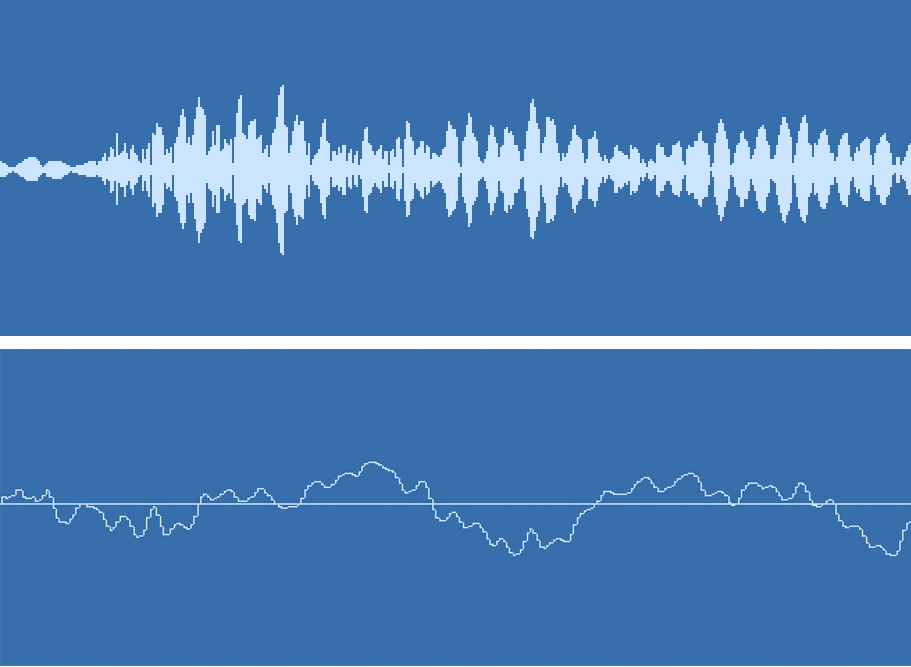
Peak normalization raises a file until its single loudest sample hits a level. Loudness normalization sets how loud the whole file sounds. This page does loudness normalization.
One cough or plosive decides the gain, so two files normalized to -1 dB peak can sound very different. It is the Normalize effect in Audacity and Normalize Max Peak in Premiere.
The level is measured in LUFS, which follows how loud speech and music sound to a listener. Two files at -16 LUFS sound about equally loud.
Raising a quiet file to -14 LUFS can push its peaks over 0 dB. The limiter here keeps them under -1 dB, so the result does not clip.
It measures properly, changes one thing, and leaves the file on your device.
The meter follows ITU-R BS.1770, the method Apple, Spotify, and broadcasters use. Quiet gaps are gated out so a long pause does not throw the number off.
A fast limiter catches any sample the gain would push near -1 dB. When it has to catch many, the page raises the gain a little more so the file still reaches the target.
Normalizing audio does not compress or reshape the voice. Quiet and loud passages keep the same balance they had.
Your browser does the measuring and the export. Nothing is uploaded and there is no account.
Editors can do it, but most bury loudness under menus, and many only offer peak normalization.
Pick YouTube, podcast, or broadcast instead of typing a target and a peak level.
Drop the file, check the reading, and download. It also works on a phone.
Drop an MP4 and the picture is copied while the soundtrack is set to the target.
Normalize audio files up to 2 GB and 60 minutes, or videos up to 1 GB.
Audio comes back as a WAV, so it is not compressed a second time before you publish it.
Video comes back as an MP4 with the same picture and a normalized AAC soundtrack. H.264 and HEVC frames are copied as they are.
The WAV is built in your browser memory, which is why longer audio files are turned away.
Drop an audio file or a video on the box above. The page measures its loudness in your browser.
Choose -14 LUFS for YouTube or Spotify, -16 for a podcast, or -23 for broadcast.
Play the original and the normalized file, then download the WAV or MP4.
Edit the episode, export it, and normalize it to -16 LUFS so it matches other shows in Apple Podcasts.
Normalize the narration to -14 LUFS before it goes into the edit, so the final video does not come out quiet.
Run each lesson through the same preset and the course plays at one level from start to finish.
Normalize audio when only the level is wrong. Other problems need a different tool first.
| Job | Use |
|---|---|
| The whole file is too quiet or too loud | Normalize it here |
| Noise gets louder along with the voice | Remove background noise from audio first |
| The voice is muffled or hard to understand | Speech audio enhancer |
| One speaker is loud and another quiet | Adjust each track in your editor; one gain cannot balance two people |
| A quiet video | Increase volume of video |
No. To normalize audio, EraseNoise measures and rewrites the file in your browser. No copy is sent or stored, so refreshing the page clears the result. Download it before you leave.
Choose the file on this page, pick -14 LUFS for YouTube or -16 LUFS for a podcast, and select Normalize loudness. Compare the two players and download the WAV. Nothing is uploaded.
Apple Podcasts asks for about -16 LUFS, within 1 dB, with true peaks no higher than -1 dB. The podcast preset here uses -16 LUFS and holds sample peaks at -1.5 dB, which leaves room for the peaks between samples.
YouTube does not publish a target. Loudness-meter makers such as Youlean put its reference near -14 LUFS. Louder videos are turned down and quieter ones are not turned up, so -14 LUFS is a safe level.
Turning the level down changes nothing but the level. Turning it up also raises any background noise, and the limiter holds down the loudest peaks. If a recording has many sharp peaks, that limiting can be audible on a very large boost.
Normalizing applies one gain to the whole file. A compressor turns the loud parts down relative to the quiet ones. If some sentences are much quieter than others, compress in your editor first, then normalize.
Audio files up to 2 GB and 60 minutes, and videos up to 1 GB. The gain is capped at +30 dB so a nearly silent file is not raised into pure hiss.
Remove noise from audio
Wind, fans, traffic, and hum
Remove noise from video
Clean the soundtrack of MP4, MOV, WebM
Remove echo
A repeat you can count after a word
Remove reverb
Shorten a dense room wash
Audio enhancer
Make speech easier to hear
Remove background music
Lower music under someone talking
Remove silence
Cut pauses, free and in your browser
Extract audio from video
Save the soundtrack as M4A, MP3, or WAV
Increase video volume
Make a quiet video louder, picture untouched
Remove buzz & hum
Lower electrical hum under a voice
Remove applause & clapping
Lower claps around a speech
Whether you need to clean a podcast, a meeting, or a video you already shot, these guides show the next step.
Choose a recording, pick where it is going, and compare before you download.
Choose a file